
nTop 5.33 is here! This release introduces new blocks for advanced surface modeling. We're excited to introduce three new sweep blocks: Conic Section Sweep, Conic Section Sweep by Tangent, and Cubic Bezier Section Sweep, giving you the control to create complex, blended surfaces. This release also includes the new Inline Custom Block feature for faster debugging and the Project Curve to Plane block, which enables the creation of 2D profiles from 3D geometry. As with every release, nTop's dedicated support team is ready to answer your questions. Please visit support.ntop.com to gain access to helpful tutorials and support articles.
Conic Section Sweep
Conic Section Sweep by Tangent
Cubic Bezier Section Sweep
Project Curve to Plane
Inline Custom Block
Usage Improvements
Block Updates
Bug Fixes
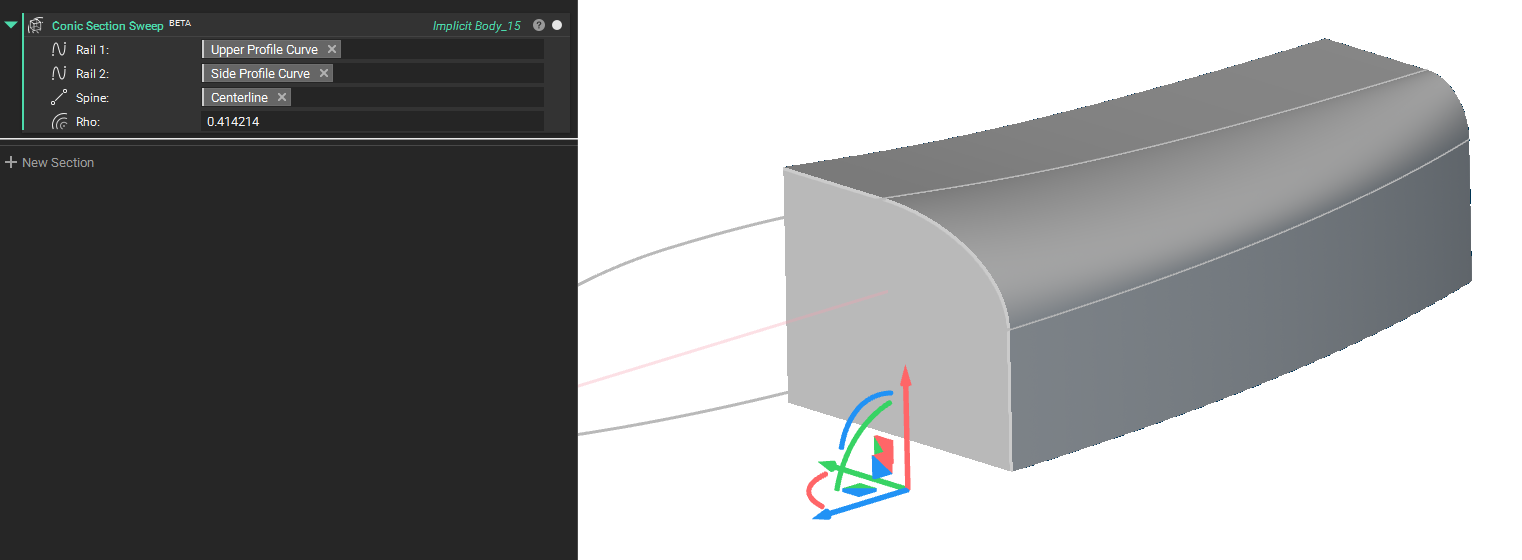
Conic Section Sweep
- The Conic Section Sweep block creates an implicit body by sweeping a conic implicit section along a spine curve between two rail curves.
- A spatially varying Rho field controls the shape of the conic section.
- This block is ideal for creating smooth surfaces with no inflections in workflows where the guide rails lie on perpendicular planes.
- Location: Beta > Modeling
- Inputs:
- Rail 1 (Curve): The first boundary curve that guides and constrains one side of the swept conic section as it travels along the spine.
- Rail 2 (Curve): The second boundary curve that guides and constrains the opposite side of the swept conic section as it travels along the spine.
- Spine (Line): A line that defines the sweep path and orientation for the conic section as it moves between the two rail curves.
- Rho (Scalar Field, Optional): A scalar field (0 to 1) that controls the conic shape factor at each point, where 0.5 produces a parabola, values less than 0.5 create elliptical sections, and values greater than 0.5 create hyperbolic sections.
-
Output: Implicit Body
Conic Section Sweep by Tangent
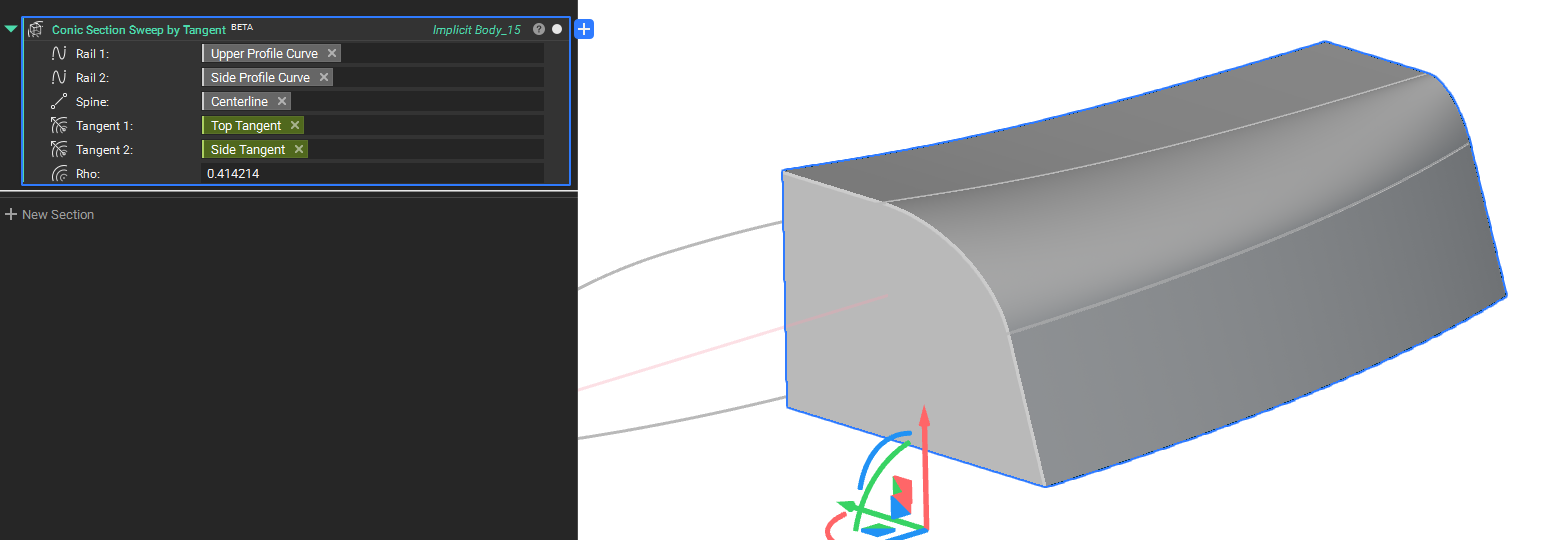
- The Conic Section Sweep by Tangent block creates an implicit body by sweeping a conic implicit section along a spine curve between two rail curves.
- The tangent fields provide additional control over the curvature at the rails.
- Location: Beta > Modeling
- Inputs:
- Rail 1 (Curve): The first boundary curve that guides and constrains one side of the swept conic section as it travels along the spine.
- Rail 2 (Curve): The second boundary curve that guides and constrains the opposite side of the swept conic section as it travels along the spine.
- Spine (Line): A line that defines the sweep path and orientation for the conic section as it moves between the two rail curves.
- Tangent 1 (Vector Field, Optional): A vector field that specifies the direction of the Conic tangent handle at rail 1 for each point along the spine.
- Tangent 2 (Vector Field, Optional): A vector field that specifies the direction of the Conic tangent handle at rail 2 for each point along the spine.
- Rho (Scalar Field, Optional): A scalar field (0 to 1) that controls the conic shape factor at each point, where 0.5 produces a parabola, values less than 0.5 create elliptical sections, and values greater than 0.5 create hyperbolic sections.
-
Output: Implicit Body
Cubic Bezier Section Sweep
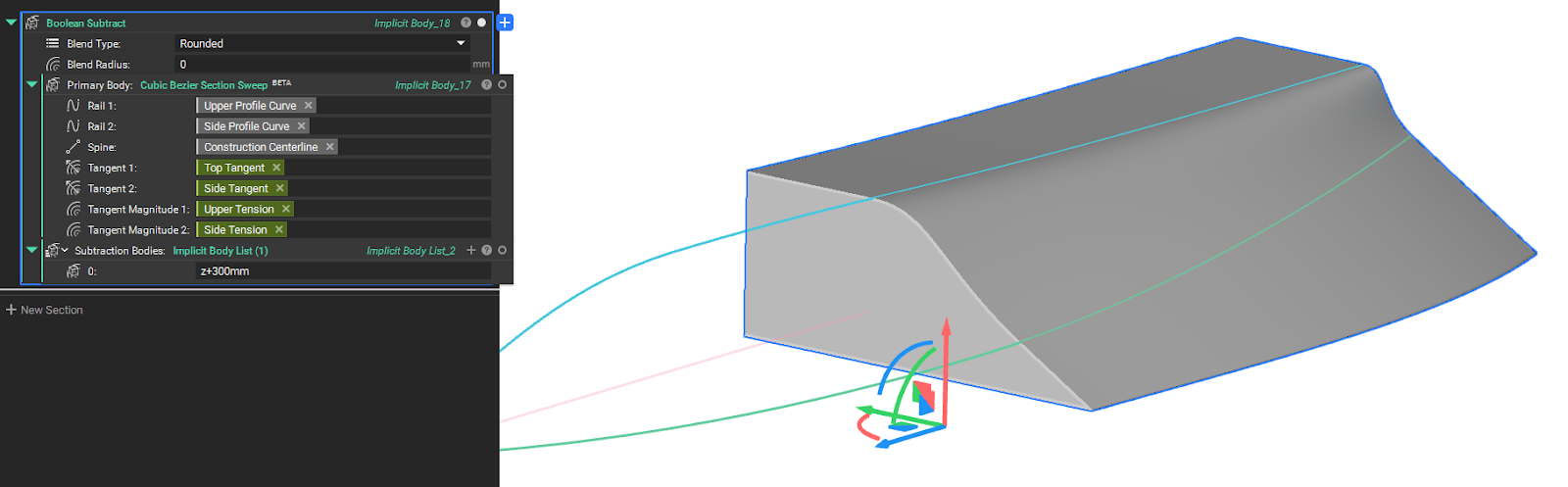
- The Cubic Bezier Section Sweep block creates an implicit body by sweeping an implicit cubic Bézier section along a spine between two rail curves.
- The curve's shape is precisely controlled by spatially varying tangent vector fields and their magnitudes at each rail.
- The tangent vector fields define the direction of the Bézier control handles, while the magnitude fields control their lengths, offering detailed control over the surface's curvature where the guide rails lie on perpendicular planes.
- Location: Beta > Modeling
- Inputs:
- Rail 1 (Curve): The first boundary curve that guides and constrains one end of the swept cubic Bézier curve as it travels along the spine.
- Rail 2 (Curve): The second boundary curve that guides and constrains the opposite end of the swept cubic Bézier curve as it travels along the spine.
- Spine (Line): A line that defines the sweep path and orientation for the cubic Bézier curve as it moves between the two rail curves.
- Tangent 1 (Vector Field, Optional): A vector field that specifies the direction of the Bézier tangent handle at rail 1 for each point along the spine.
- Tangent 2 (Vector Field, Optional): A vector field that specifies the direction of the Bézier tangent handle at rail 2 for each point along the spine.
- Tangent Magnitude 1 (Scalar Field, Optional): A scalar field that controls the length of the tangent handle at rail 1, affecting the curve's pull toward that tangent direction. The tangent magnitude is relative to the in-plane distance between the rails.
- Tangent Magnitude 2 (Scalar Field, Optional): A scalar field that controls the length of the tangent handle at rail 2, affecting the curve's pull toward that tangent direction. The tangent magnitude is relative to the in-plane distance between the rails.
-
Output: Implicit Body
Project Curve to Plane
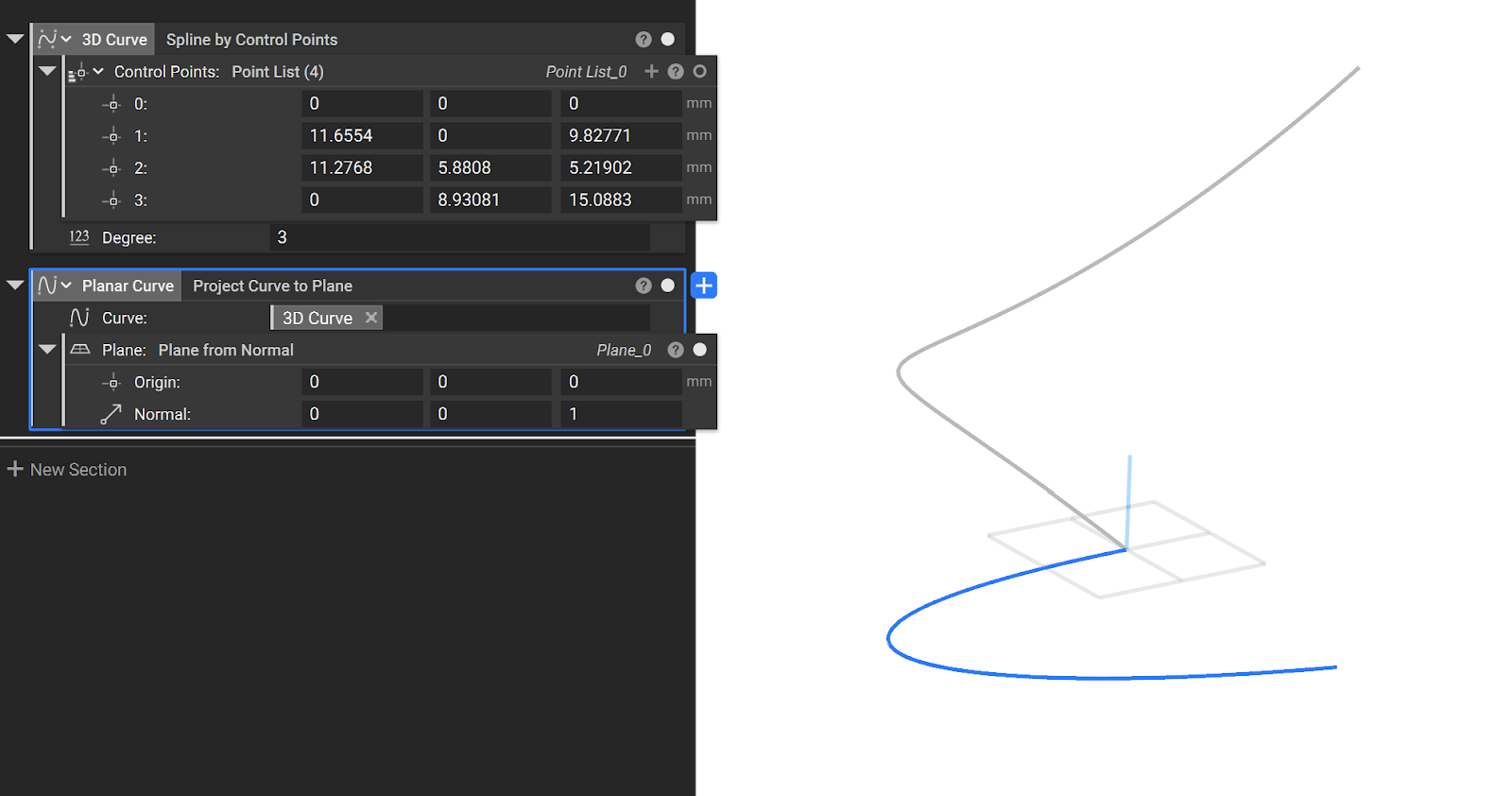
- The new Project Curve to Plane block that lets you project a 3D curve to a Plane, flattening it into a planar curve.
- Common uses:
- Implicit surfacing workflows
- Location: Modeling > Utilities
- Inputs:
- Curve: Curve to project.
- Plane: Plane to project to.
-
Output: Curve
Inline Custom Block
- You can now "unzip" a Custom Block directly within your nTop notebook. The Inline Custom Block feature replaces the Custom Block with its internal contents, allowing you to quickly inspect, modify, or debug its logic without having to open the block in a separate file. Values in the Custom Block's inputs prior to inlining will be linked directly to the downstream blocks previously inside the Custom Block..
-
To use this feature, right-click on any Custom Block in your notebook and select Inline Custom Block from the context menu.
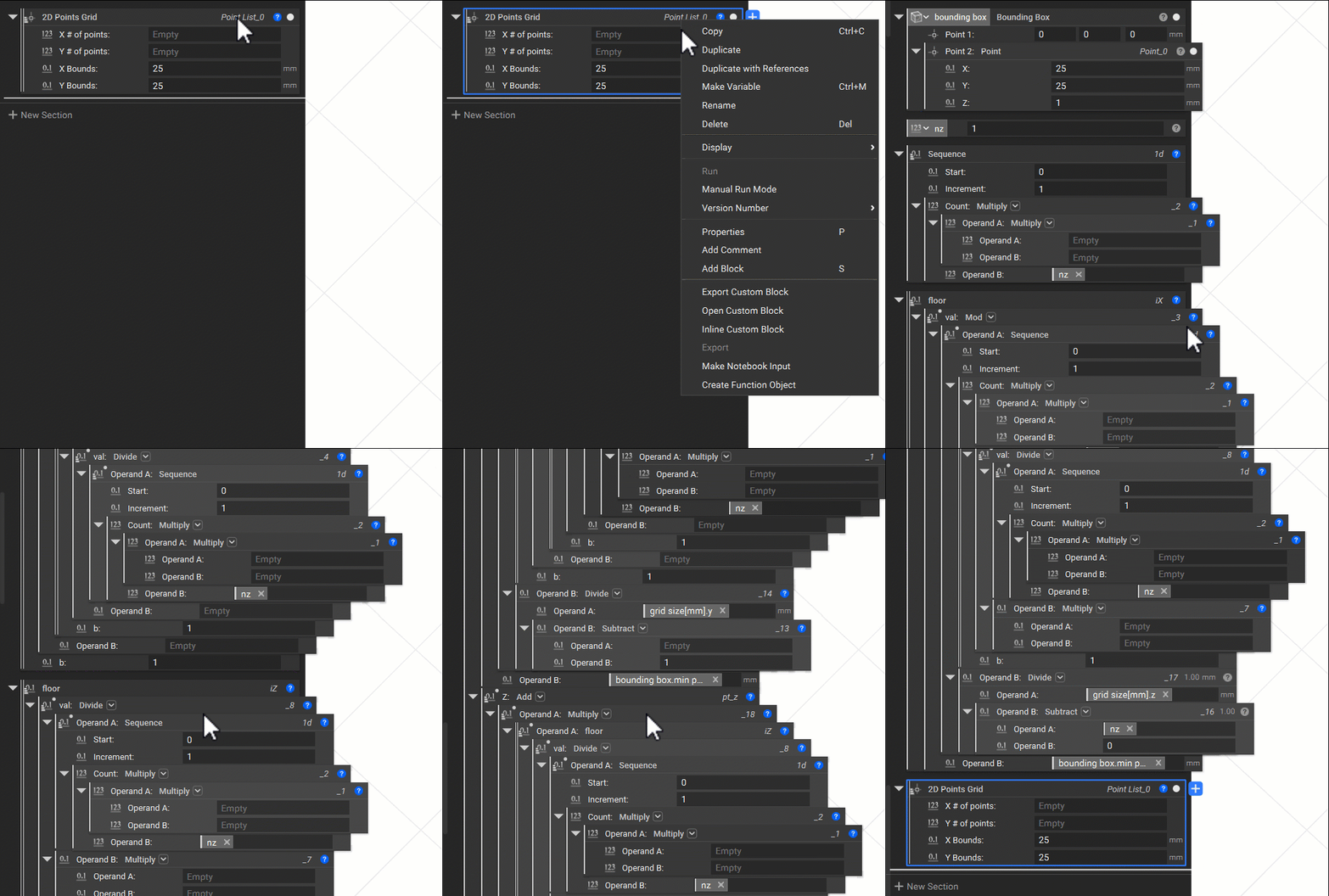
- Note: If a Custom Block contains other nested Custom Blocks, the nested blocks will not be unzipped.
Usage Improvements
- You can now use the hotkey Ctrl+Shift+Left Arrow to collapse all sections in the notebook.
Block Updates
- The Pull Points to Plane block has been renamed to Project Points to Plane for clarity and consistency.
Bug Fixes
- We have fixed an issue where an extra /n (newline character) was incorrectly added to the description when creating input_template.json file using nTop Automate.