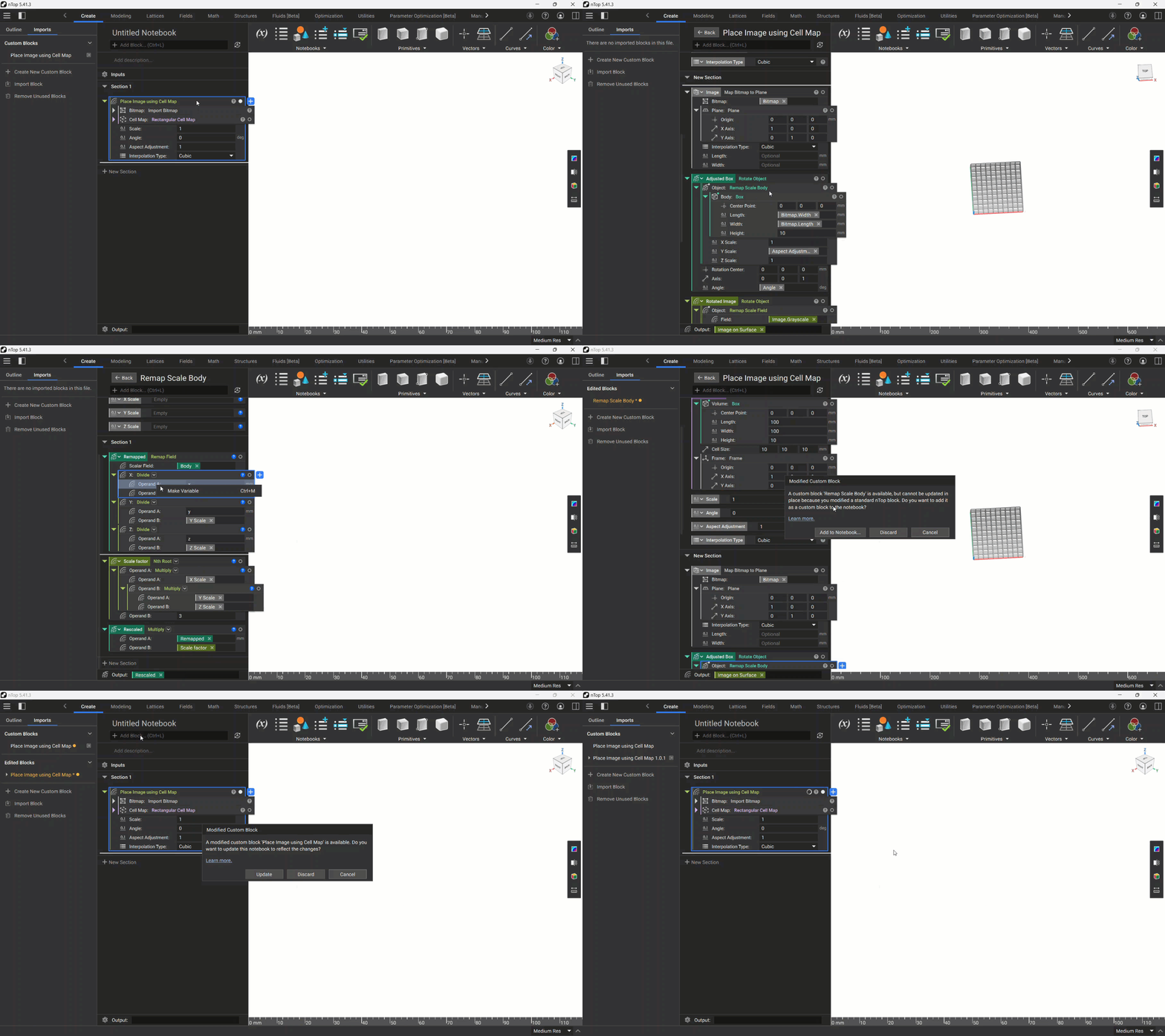
Modifying Example:
Frequently Asked Questions:
What are the primary scenarios when editing Custom Blocks?
There are 4 primary scenarios when editing Custom Blocks, each one will show a different pop-up window when the BACK button is selected.
1. Update (no inputs/output change) - the most common scenario that occurs when a change is made to a Custom Block that does not modify its inputs or output or is a name change.
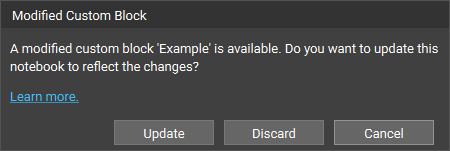
- Update - (Recommended) Accept the changes made to all instances of Example within the main notebook.
- Discard - Discard the changes we made in Example.
- Cancel - Ignore the changes. This will store the unsaved changes of Example that you can apply later through the Imported Blocks menu.
2. Add to Notebook (inputs/output change) - the scenario when a Custom Block’s inputs or outputs are changed. You need to add it to the notebook.
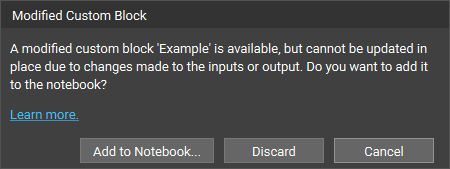
- Add to Notebook - (Recommended) Add the Custom Block to the notebook as a new instance. From there, you will likely need to replace your old Example instances with this new Example instance.
- Discard - Discard the changes we made in Example.
- Cancel - Ignore the changes. This will store our unsaved changes of Example that we can apply later through the Imports menu.
3. Manage (nested change) - the scenario that occurs when you open a Custom Block from the Imports menu that is more than a single level deep in the Custom Block hierarchy tree and go back to the main notebook.
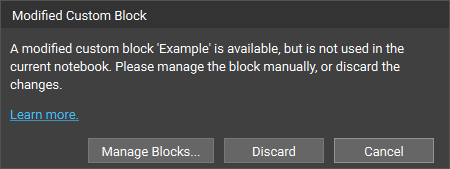
- Manage Blocks - (Recommended) Opens the Imports menu where you can manually manage your changes. You will have to open up the Custom Block that was 1 level higher in the Custom Block hierarchy tree that contains the nested Custom Block and apply your edits there. Continue working your way back up the Custom Block hierarchy tree until you reach the main notebook level and apply your edits.
- Discard - Discard the changes we made in Example.
- Cancel - Ignore the changes. This will store our unsaved changes of Example that we can apply later through the Imports menu.
4. Invalid - the scenario that occurs when a Custom Block has no inputs or output.
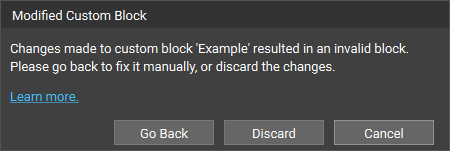
- Go Back - (Recommended) Reopens the Custom Block back up where you can proceed to fix the errors.
- Discard - Discard the changes we made in Example.
- Cancel - Ignore the changes. This will store our unsaved changes of Example that we can apply later through the Imports menu.
Imports Menu Indicators
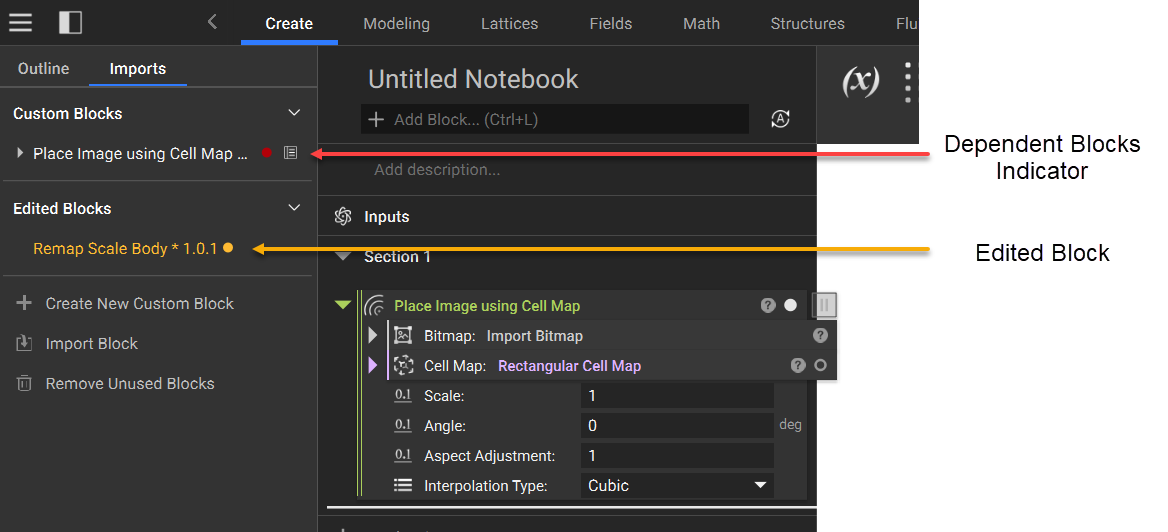
1. Dependent Blocks Indicator - The red circle means that dependent blocks have changes. If the block is collapsed, click the chevron to see which dependent blocks have changes. To modify dependent blocks within this it, right-click and select "Open", then proceed to update blocks within it.
2. Edited Block Indicator - The yellow circle means a block has been edited and requires further action. The pop-up window will have information on what action is required.
Will my Custom Blocks changes be applied outside my file?
Once a Custom Block is imported into a file, it becomes internalized to that file. Any changes made will be within the context of that file but not reflected externally. Please export Custom Block to a directory to share or update any that were imported and edited within a file.
Will my Custom Blocks changes be applied to all instances within my file?
Any changes made to a Custom Block within a file will be applied to all instances of the Custom Block (including nested Custom Blocks, Custom Blocks within Custom Blocks) in your file.
What does the version number mean?
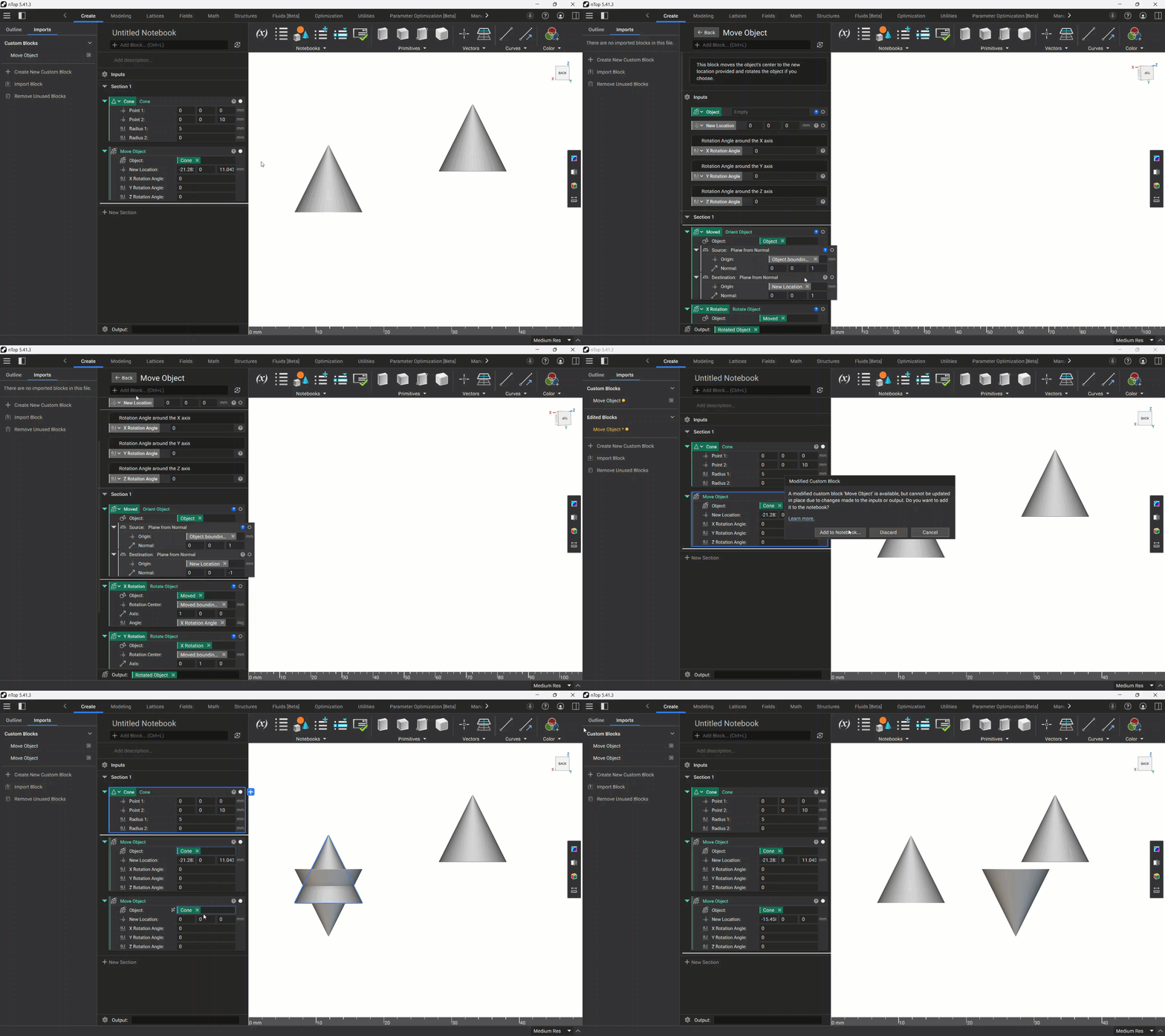
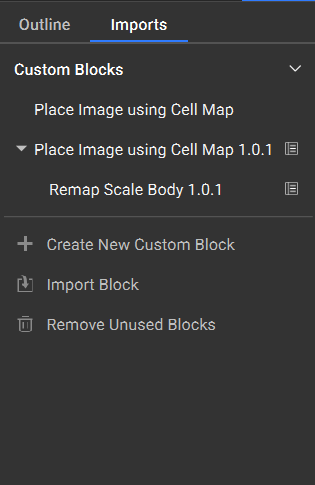
Whenever a Custom Block is edited within a file, we automatically increment the block version. The example below shows the original Place Image using Cell Map custom block and the updated version. The updated custom block is indicated by the version number next to it.
What is the Custom Block hierarchy tree?
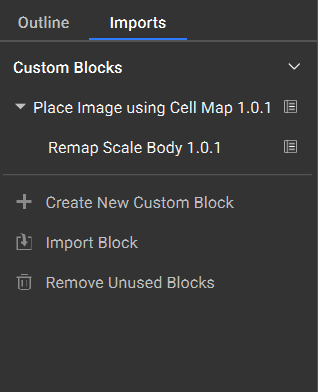
The Custom Block hierarchy tree shows in the Imported Blocks menu. Every Custom Block that contains Custom Blocks within it, nested Custom Blocks, will have a chevron that you can expand/collapse to show the nested Custom Blocks. If a Custom Block does not have a chevron, it does not contain any nested Custom Blocks.
In the example below, the Place Image using Cell Map custom block contains a nested Remap Scale Body custom block.
Can I make changes to nested Custom Blocks?
Nested Custom Blocks, Custom Blocks within Custom Blocks, can be viewed and edited within a file. To edit them, we recommend opening each Custom Block to get to the lowest nested Custom Block. Then make your changes to the lowest nested Custom Block, then go back to the next highest Custom Block level and apply your changes - eventually working your way back up to the main notebook level.