
Objective:
Export slices into Renishaw QuantAM
Applies to:
- Export Slicing
- Additive Manufacturing
Procedure:
1. Generate Slice Stack
You can use the Slice Body or Slice Mesh block to slice either an Implicit Body or Mesh to generate closed and open contours.
Optionally, you can use the Simplify Slice Stack block to reduce the number of polylines within a slice stack, resulting in a smaller file to transfer to QuantAM.
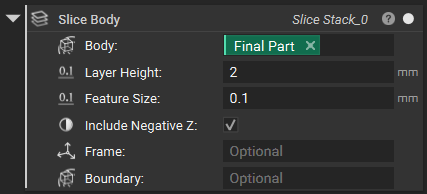
2. Export Slice Stack in Renishaw format
QuantAM supports both ASCII and Binary CLI formats. You can export your slice stack to either of these formats using the Export Slices to CLI block.
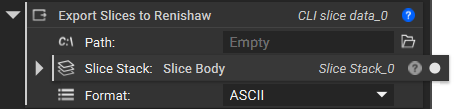
Note: Exports Slices to CLI do not support exporting point exposures generated from the Slice Lattice block.
3. Import into Renishaw QuantAM
Once you open Renishaw Quantum 5.3 or newer, you can import the CLI file into an existing document or create a new one with the file.
To import into an existing document:
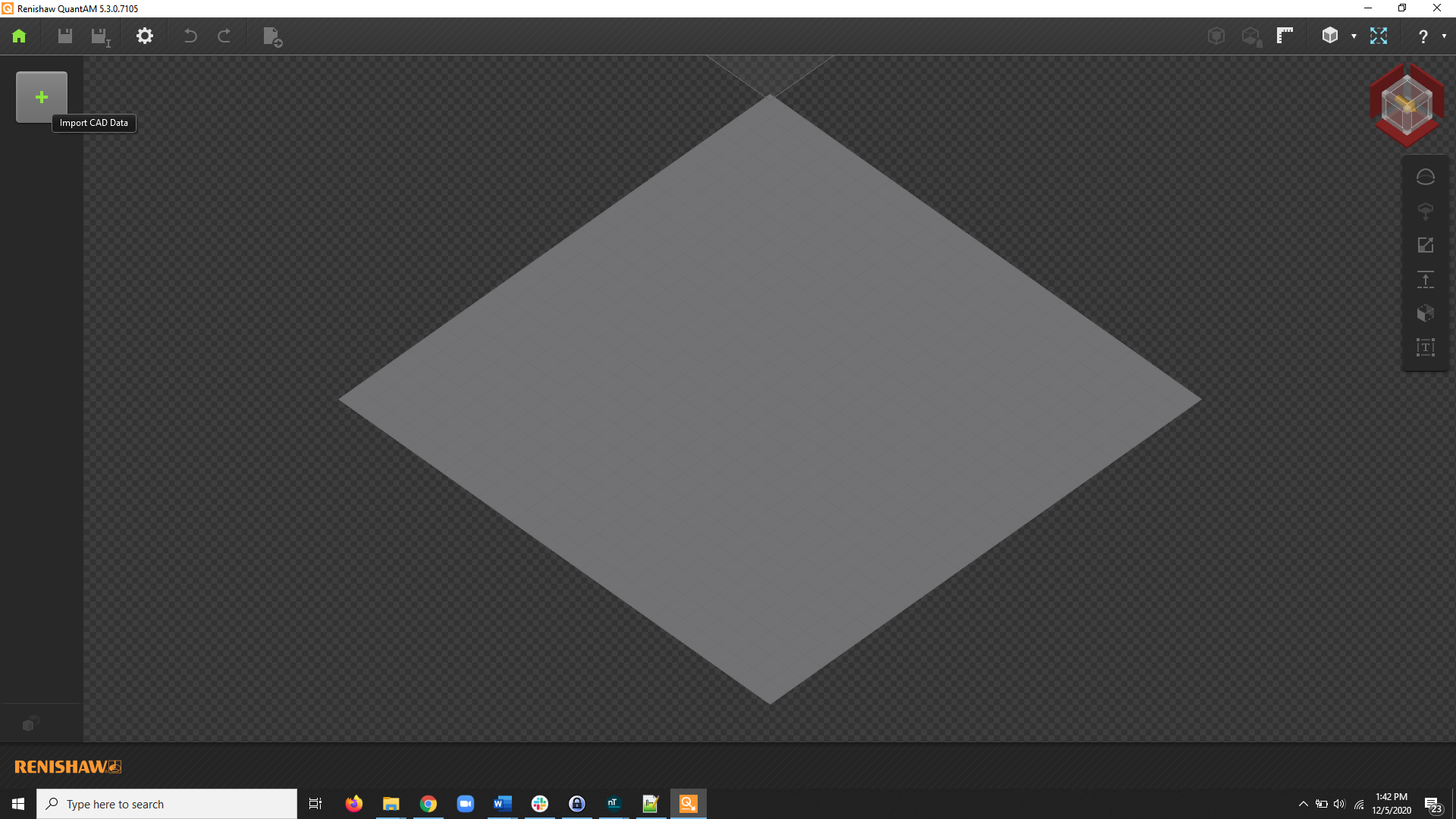
1. Use the Plus on the side panel to open Import Model
2. Select your CLI file.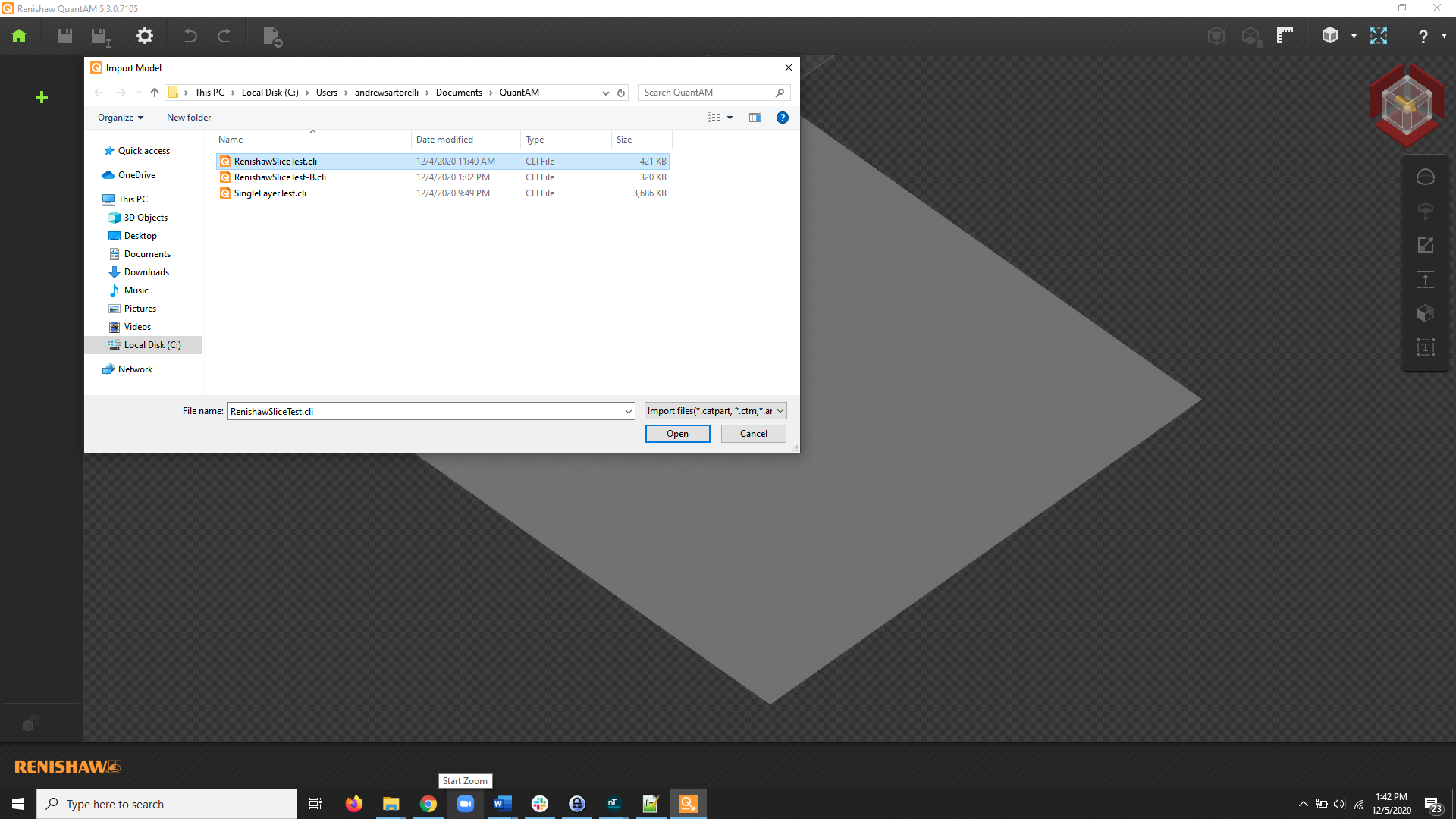
3. You will now see the bounding box representation of your slice stack. You can now apply your material definition to generate tool pathing.
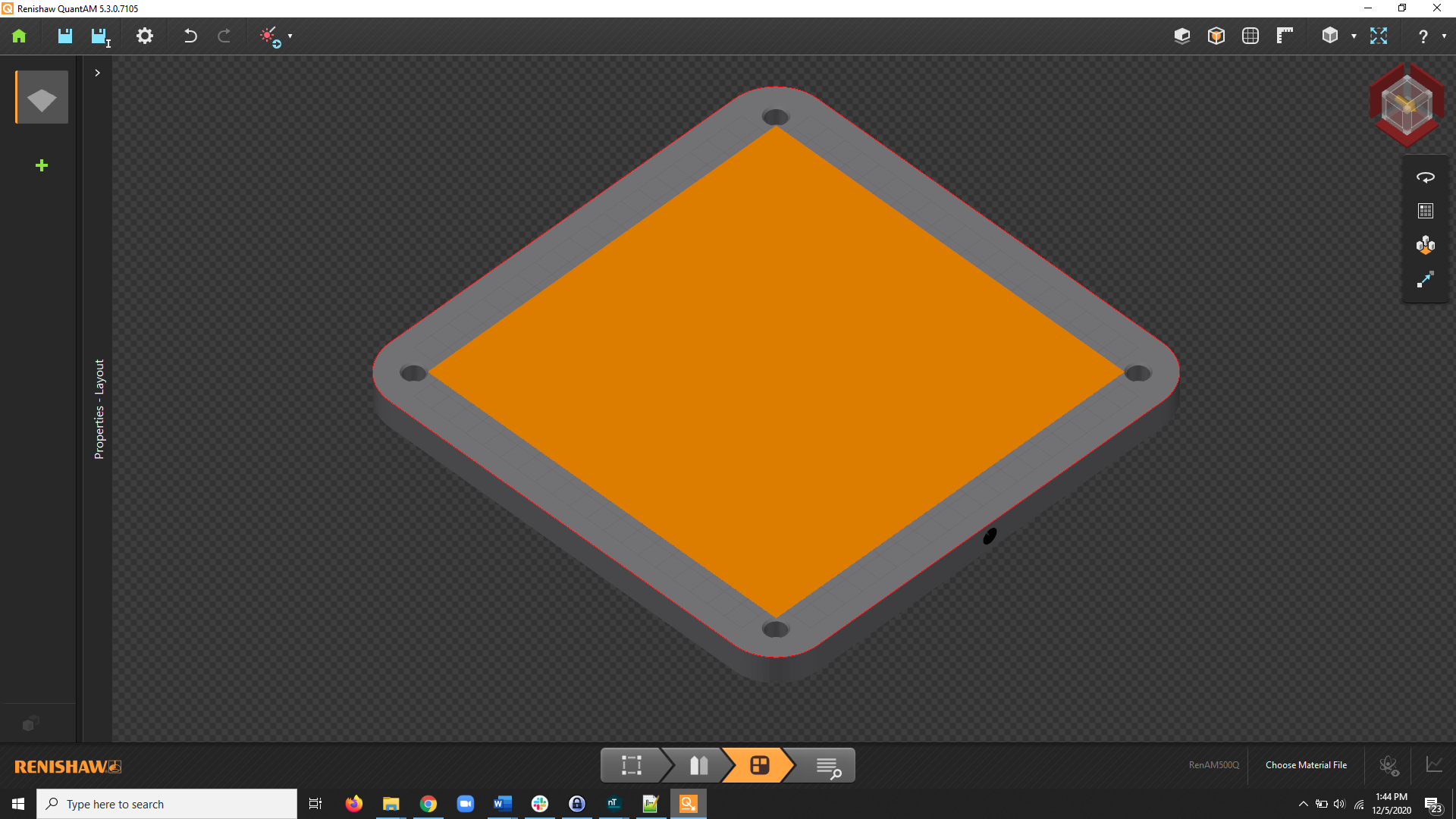
To import into a new document:
1. Select Open... from the home screen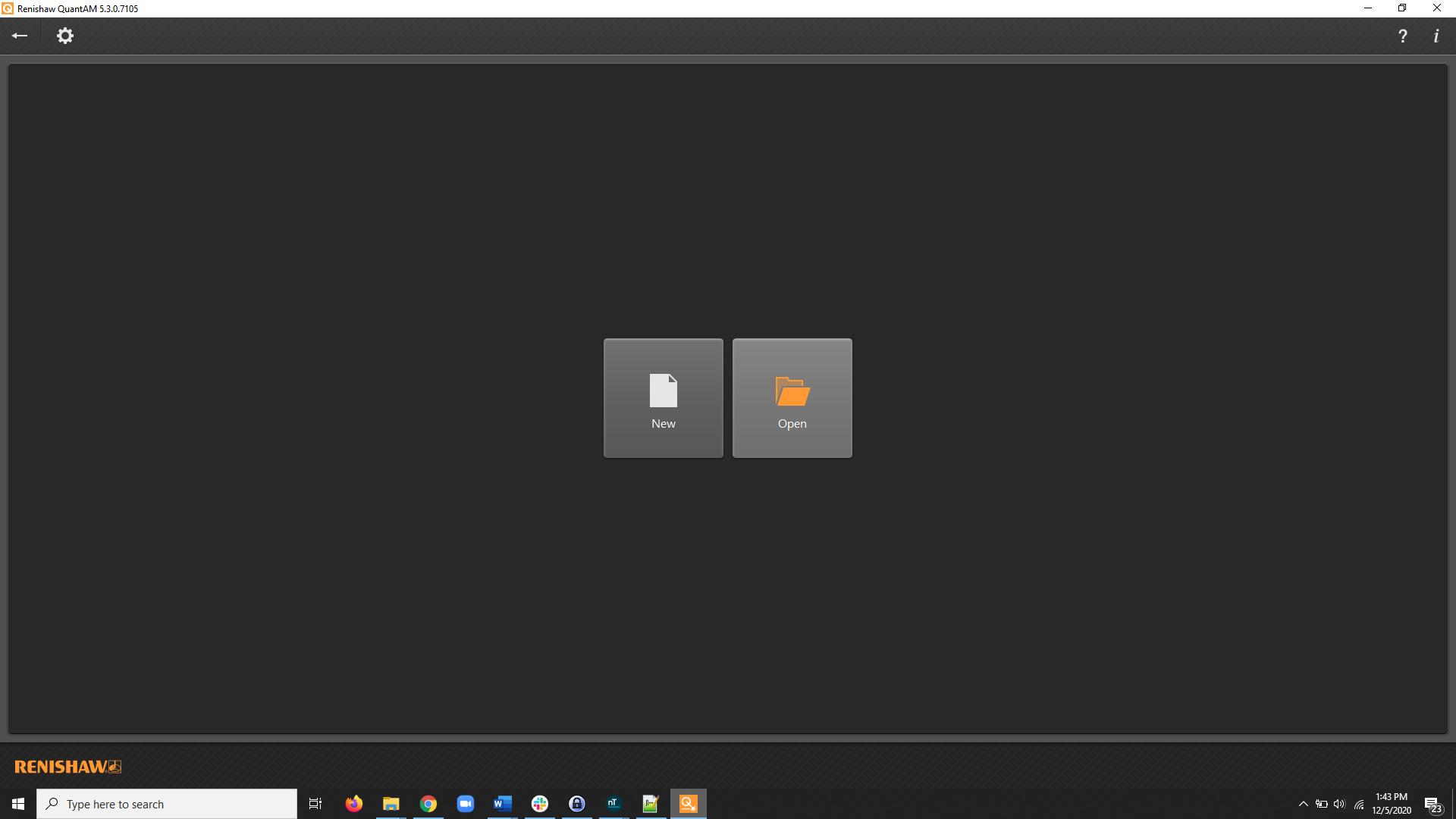
2. Select Browse Model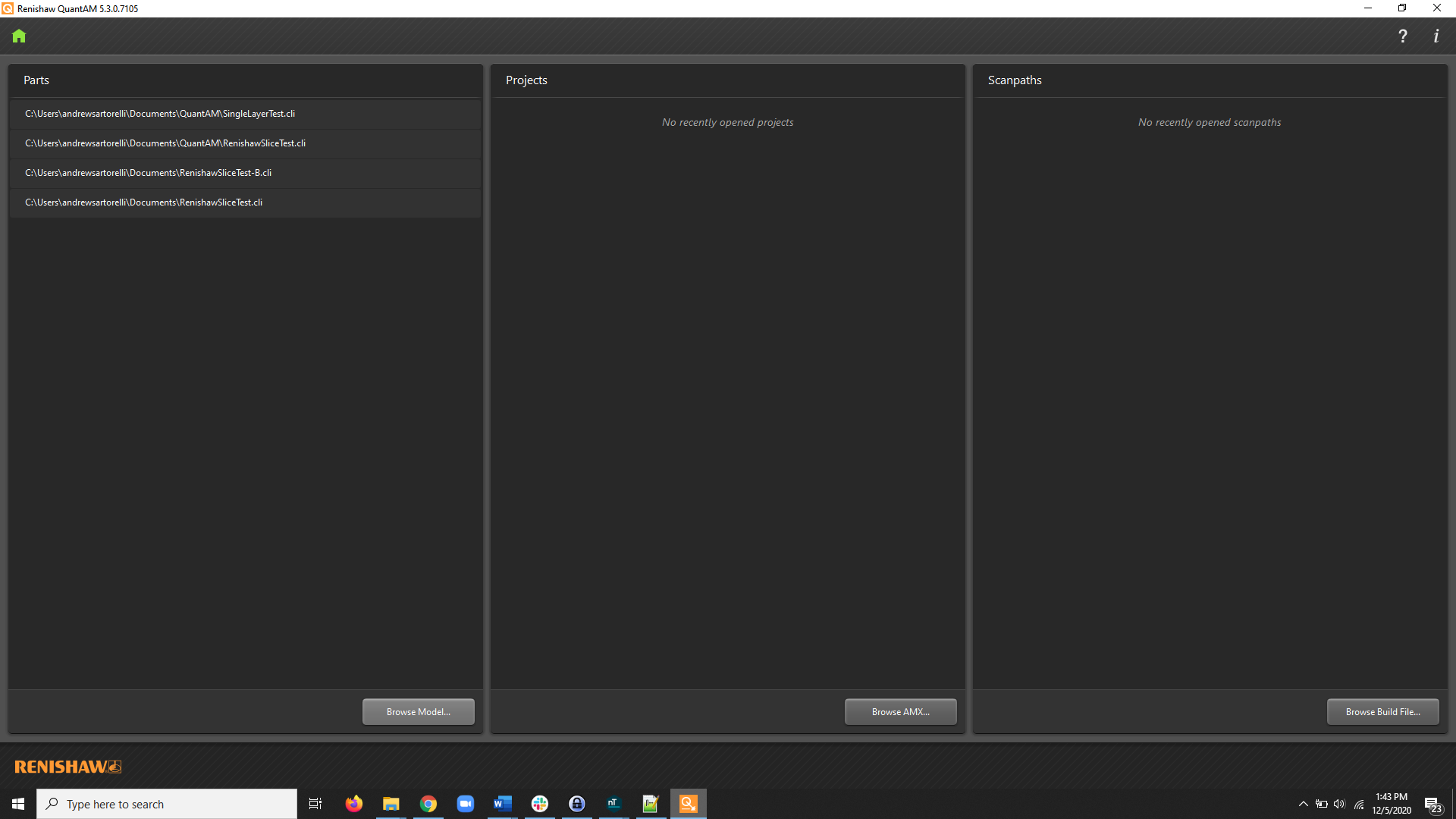
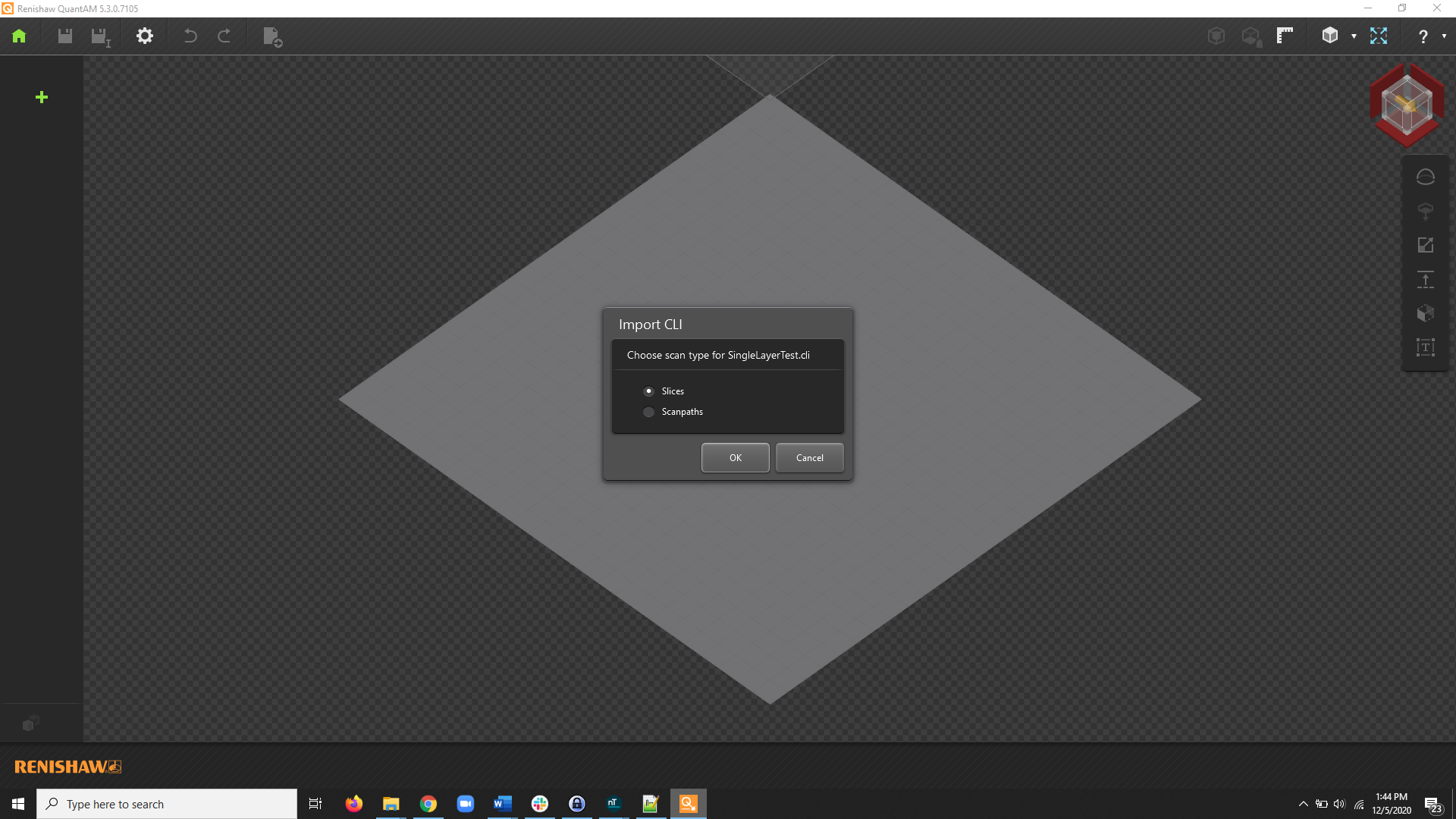
3. When prompted, select Slices
4. You will now see the bounding box representation of your slice stack. You can now apply your material definition to generate tool pathing.
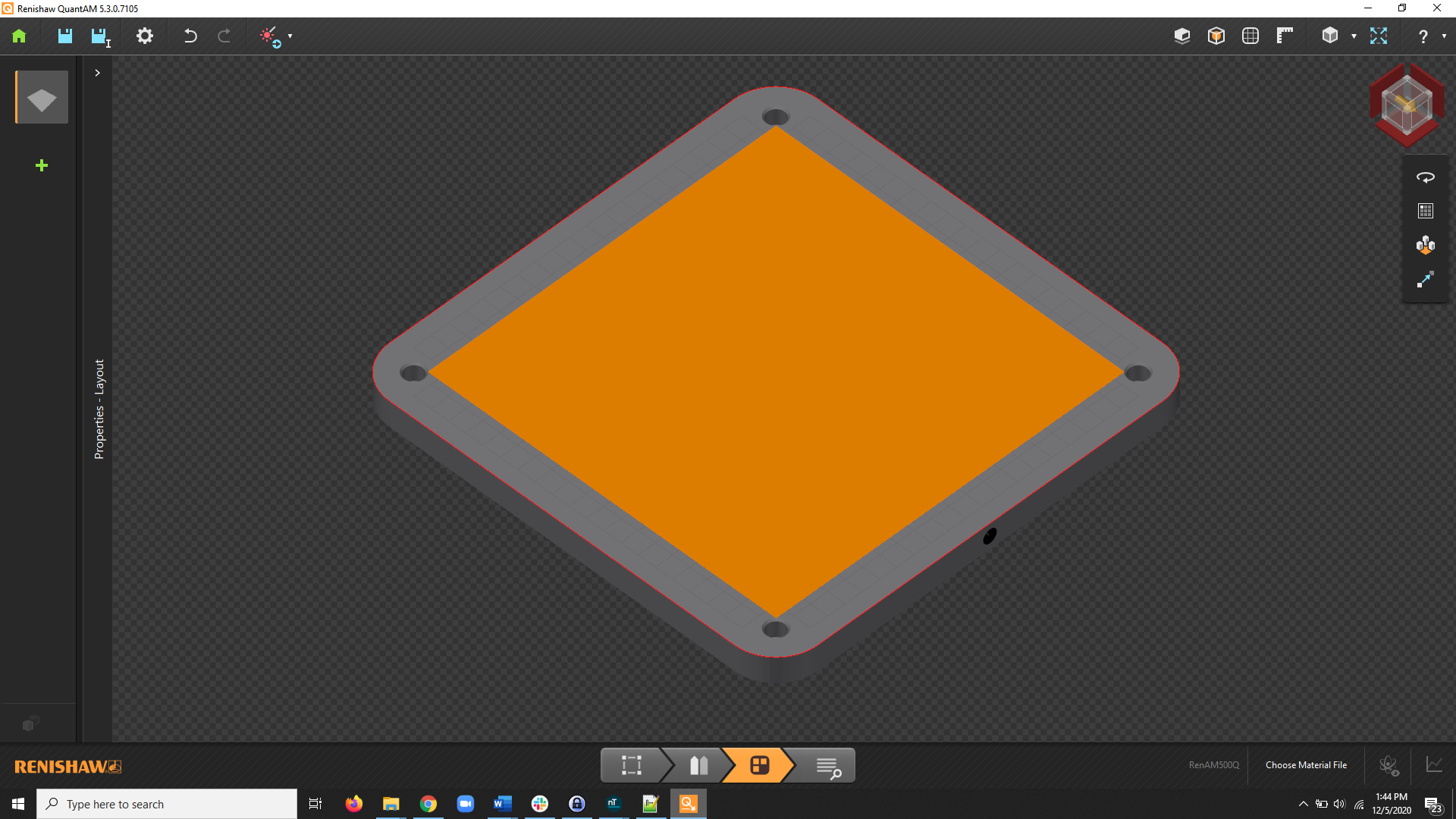
And that’s it! You’ve successfully imported your CLI files into QuantAM.
Are you still having issues? Contact the support team, and we’ll be happy to help!