
Objective:
This article explains how to install the nTop MSI using the Command Prompt, including silent installs. Command prompt installs are useful to organizations requiring IT professionals or system administrators to deploy software. They can also enable logging, which may be useful for troubleshooting.
Applies to:
- nTop
- Windows 10 and Windows 11
- Command Prompt
Procedure:
- Create a directory to save the MSI and log files. For this example,
C:\nTop - Save a copy of the MSI to
C:\nTop. For this example,nTop-<version>.msi(replace<version>with the version you downloaded, for example 6.2.2). - Click the Windows Start button and select Windows System > Command Prompt. To install for all users, right-click it and choose Run as administrator.
- At the prompt type:
msiexec /i "C:\nTop\nTop-<version>.msi" /L*V "C:\nTop\mylog.log"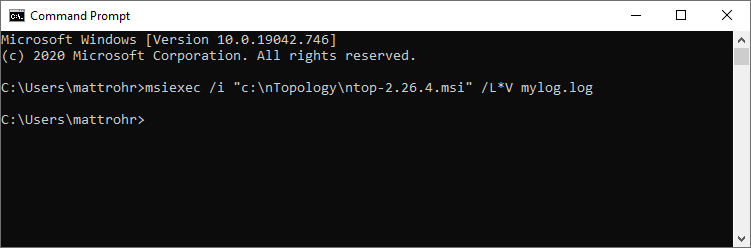
- The
/L*Voption enables verbose logging and creates the log filemylog.log. - Complete the installation by following the prompts.
Silent installation:
To install without any prompts, for example when deploying to many computers, add the display and restart options and the installer properties described below. Put the whole command on one line, or end each line except the last with ^ as shown in the example.
Standard Windows Installer options
These come from the Microsoft Standard Installer command-line options (Link).
-
/qn: Quiet display. The installer runs without displaying a user interface. No prompts, messages, or dialog boxes are displayed to the user. -
/passive: Passive display. The installer shows a progress bar but requires no user input. Use either/qnor/passive, not both. -
/norestart: Never restart. The installer never restarts the computer after the installation. -
/L*V "<path>": Verbose log file, as in the procedure above.
nTop installer properties
Add these to the command as NAME=value. Property names are case sensitive.
| Property | Values | Description |
|---|---|---|
WIXUI_LOCATION_LISTBOX |
"Country, CC", for example "Germany, DE"
|
The country the software is installed in, in the same format as the installer's location drop-down. If omitted, the default is "United States, US". |
WIXUI_TOOLKIT_ADDITIVE_MANUFACTURING_CHECKBOX |
1 |
Shows the Additive Manufacturing toolkit in the ribbon. |
WIXUI_TOOLKIT_ARCHITECTED_MATERIALS_CHECKBOX |
1 |
Shows the Architected Materials toolkit in the ribbon. |
WIXUI_TOOLKIT_DESIGN_ANALYSIS_CHECKBOX |
1 |
Shows the Design Analysis toolkit in the ribbon. |
WIXUI_TOOLKIT_LIGHTWEIGHTING_CHECKBOX |
1 |
Shows the Lightweighting toolkit in the ribbon. |
DATAUPLOAD |
1 or 0
|
Required anonymous usage data and crash reports. 0 turns them off. See Usage data below. |
PERSONALIZEDUPLOAD |
1 or 0
|
Optional personalized usage data (name and email added to the usage data). 0 turns it off. See Usage data below. |
Note: The toolkit properties only control which toolkits are visible in the ribbon. Toolkits ship with nTop, so this does not install or uninstall anything. You can change the visibility later in File > Settings > Ribbon. On an upgrade, toolkits that are already visible stay selected.
Usage data
The installer's data screen asks about usage data, and the required-data option cannot be turned off in the interface. For a silent install you control it with the properties above:
- If you do not pass
DATAUPLOADandPERSONALIZEDUPLOAD, a new silent install turns both on. -
DATAUPLOAD=0turns off the required anonymous usage data and crash reports.PERSONALIZEDUPLOAD=0turns off the optional personalized data. - The properties work for every location, including EU countries.
- When upgrading, if you leave out a property the installer keeps your previous setting. Passing it overrides the previous setting.
- Use only the values
1or0. Any other value stops the installation with an error.
To block these connections in your firewall as well, see the nTop allowlisting guide. Blocking updater.ntop.com also disables the "Software Update Available" notice. Do not block app.ntop.com, which is needed for license authentication and the dashboard.
Example
This command installs for a user in Germany, shows all four toolkits in the ribbon, turns off usage data and crash reports and personalized data, installs silently, and writes a log:
msiexec /i "C:\nTop\nTop-<version>.msi" ^
WIXUI_TOOLKIT_ADDITIVE_MANUFACTURING_CHECKBOX=1 ^
WIXUI_TOOLKIT_ARCHITECTED_MATERIALS_CHECKBOX=1 ^
WIXUI_TOOLKIT_DESIGN_ANALYSIS_CHECKBOX=1 ^
WIXUI_TOOLKIT_LIGHTWEIGHTING_CHECKBOX=1 ^
WIXUI_LOCATION_LISTBOX="Germany, DE" ^
DATAUPLOAD=0 PERSONALIZEDUPLOAD=0 ^
/qn /norestart /L*V "C:\nTop\mylog.log"
The same command on a single line:
msiexec /i "C:\nTop\nTop-<version>.msi" WIXUI_TOOLKIT_ADDITIVE_MANUFACTURING_CHECKBOX=1 WIXUI_TOOLKIT_ARCHITECTED_MATERIALS_CHECKBOX=1 WIXUI_TOOLKIT_DESIGN_ANALYSIS_CHECKBOX=1 WIXUI_TOOLKIT_LIGHTWEIGHTING_CHECKBOX=1 WIXUI_LOCATION_LISTBOX="Germany, DE" DATAUPLOAD=0 PERSONALIZEDUPLOAD=0 /qn /norestart /L*V "C:\nTop\mylog.log"To keep the usage data on, use DATAUPLOAD=1 PERSONALIZEDUPLOAD=1 instead, or leave both out.
Checking the result
- The command returns immediately in a silent install. To see the result, check the exit code with
echo %errorlevel%right after the command finishes (or usestart /waitin a script). -
0means success. -
3010means success, but Windows needs a restart to finish. -
1603is a fatal error. Open the log and search forReturn value 3to find the cause. If you need help reading it, attach the log when you contact support.
Are you still having issues? Contact the support team, and we’ll be happy to help!