
Objective:
Learn how to ramp a parameter using a quadratic equation.
Procedure:
To ramp your lattice thickness quadratically, you need to break down the equation and build it in nTop using the Math blocks. Be sure to watch for units while creating your equation.
1. Set-up: Start with the geometry you want to ramp already created. In this example, we use a cylinder with a volume lattice infill.
2. Build your equation: Use Math blocks to build your quadratic equation. We are going to build t = x^2. This initial equation will not have units.
You can use the field viewer's Min and Max values to visualize the fields.
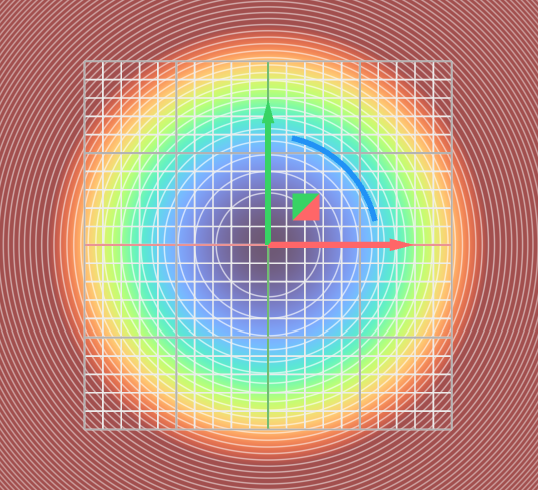 |
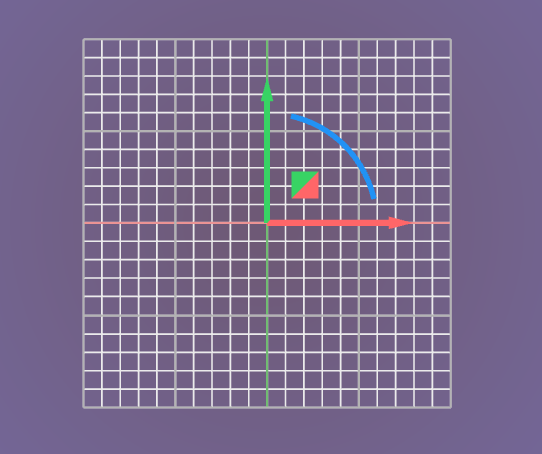 |
- To create 'X' we use an Axis block.
- Point: (0,0,0) - Set to the centroid of our part (automatically assigns units)
- Vector: (0,0,1) - Set from the Centroid pointing up in the Z-axis
- Changing the Vector and the Point changes the region of effect for the quadratic equation
- Add a Square block and input the Divide block from the last step
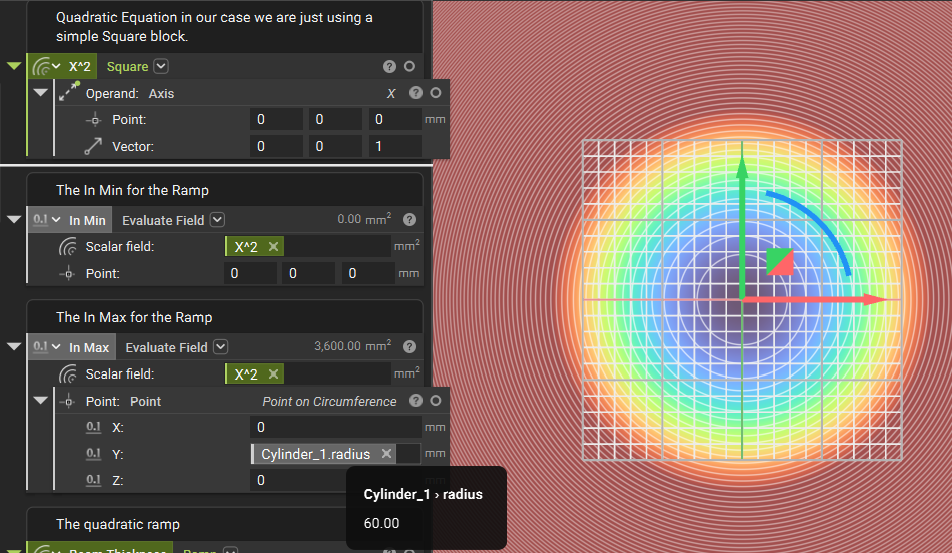
We can see using the Evaluate Field block that our t value, which is x^2, is producing the correct result of 3600 mm^2 at x=60
3. Create the In-min value for the ramp: We want to set the In-min to be (0,0,0) mm, the middle of our equation.
- Add an Evaluate Field block.
- Scalar Field: Input the 'X^2' block we built
- Point: (0,0,0)
4. Create the In-max value for the ramp: We want to set the In-max value to be the maximum at the circumference of our cylinder. Units are automatically added; there is no need to remove them.
- Add a Point block
- Open up the Properties panel of the Cylinder (starting geometry) and grab the 'radius' chip. Insert that chip into the Y input of the Point block.
- Keep X and Y as 0 (this may change for your equation)
- Add an Evaluate Field block
- Scalar Field: Input the 'X^2' block we built
- Point: Insert the Point block with the radius chip
5. Build the ramp: Insert the components we built and decide what values you want your lattice thickness to be at the In min and In max distances.
- Add a Ramp block
- Scalar Field: 'X^2' block from Step 2
- In Min: Add the In Min Evaluate Field block from Step 3
- In Max: Add the In Max Evaluate Field block from Step 4
- Out Min: 1 mm
- Out Max: 4 mm (these values correspond to what thickness we want the lattice struts to be at the In Min and In Max)
- Continuity: Geometric
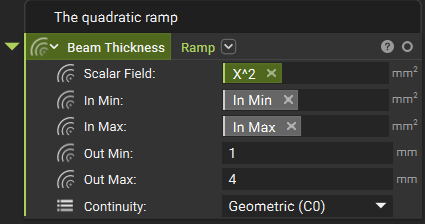
6. Quadratically ramp the lattice thickness: Drag the Ramp block you just created into the Beam thickness input of the Infill Volume Lattice block.
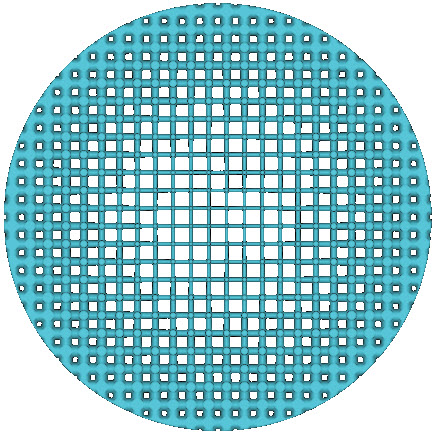
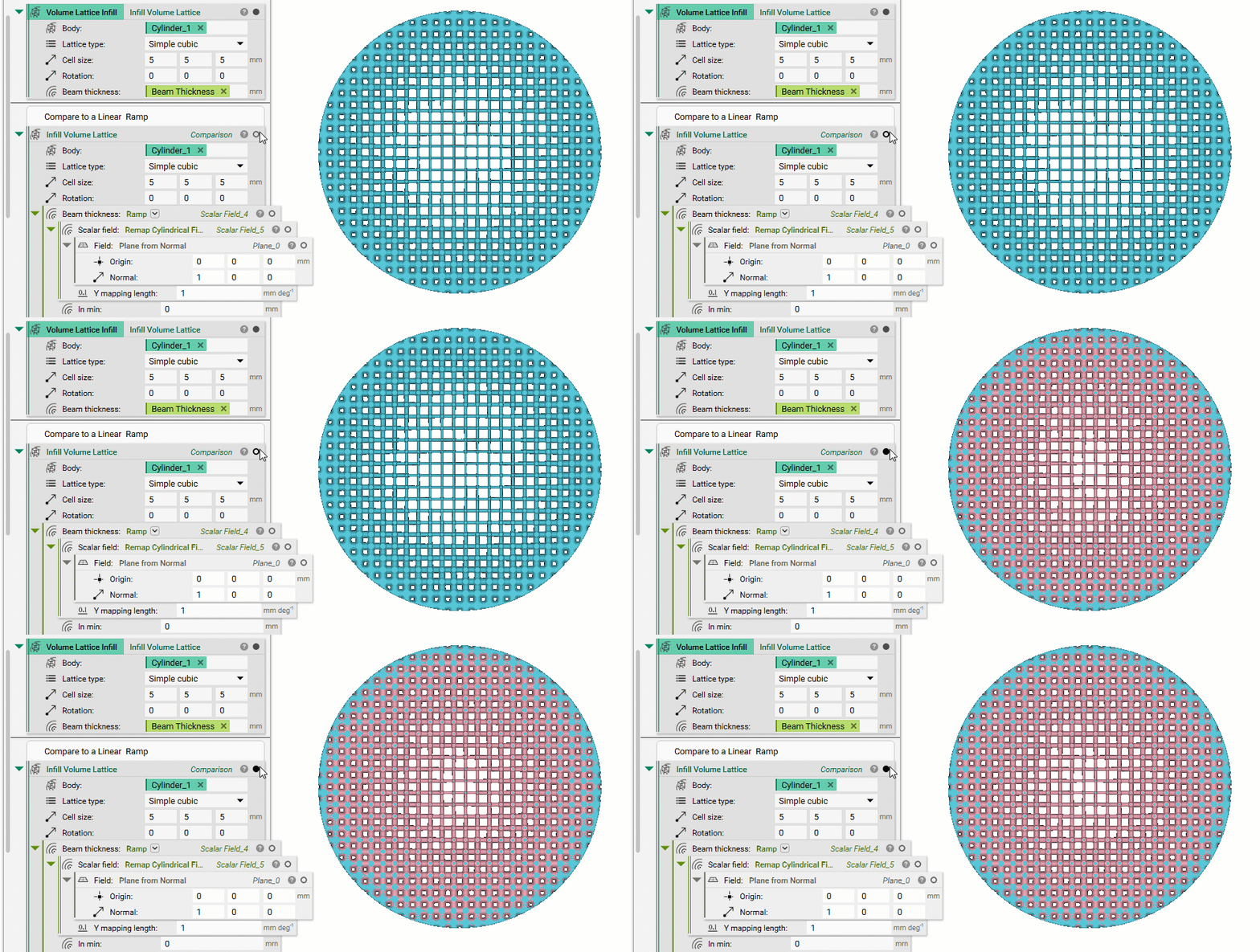
Below is a comparison of the quadratic ramp we just made with a linear ramp of the same values (the pink lattice is the linear ramp).
7. Optional: Visualize the quadratic. This optional step is useful if you want to see what your quadratic equation looks like.
- Add a Box block
- Length: 100 mm, Width 100 mm, Height 1 mm
- Add an Offset Body block
- Body: Input the Box we just made
- Distance: Input the Quadratic Ramp
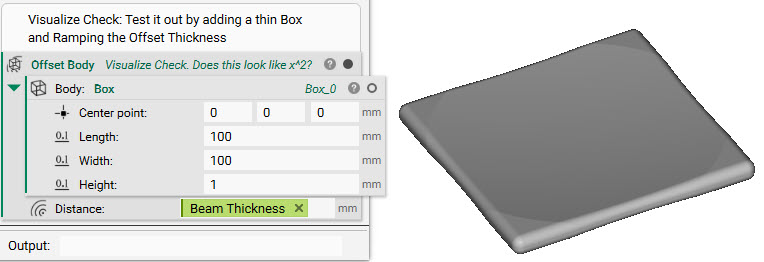
And that’s it! You’ve successfully created a quadratic ramp.
Are you still having issues? Contact the support team, and we’ll be happy to help!