
Objective:
Learn how to generate and export a variable from Ansys CFD Post in CSV format to import into nTop.
Applies to:
- ANSYS CFD Post
- Importing
Procedure:
With Ansys CFD Post Open:
1. File > Export > Export...
2. Options: Define desired inputs, the primary three are:
- Set file path and name
- Location (i.e. Named Selection(s))
- Variable(s)
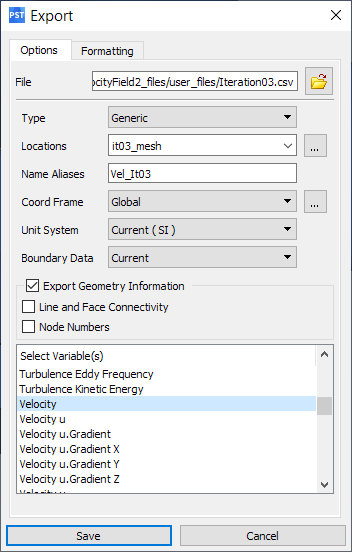
Image #1: Export Window, Options Tab
3. Formatting
- Vector Variables
- Components (i.e. vector) or Scalar
- Separator
- Ensure that Include Header is turned off, this will allow nTop's Import Scalar Point Map or Import Vector Point Map blocks to read in the CSV file
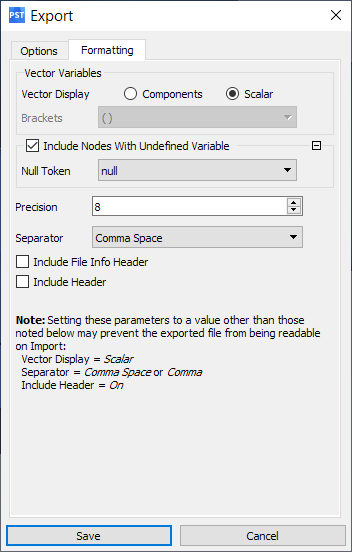
Image #2: Export Window, Formatting Tab
- Ensure that Include Header is turned off, this will allow nTop's Import Scalar Point Map or Import Vector Point Map blocks to read in the CSV file
4. Click Save
The GIF below shows the steps described above.
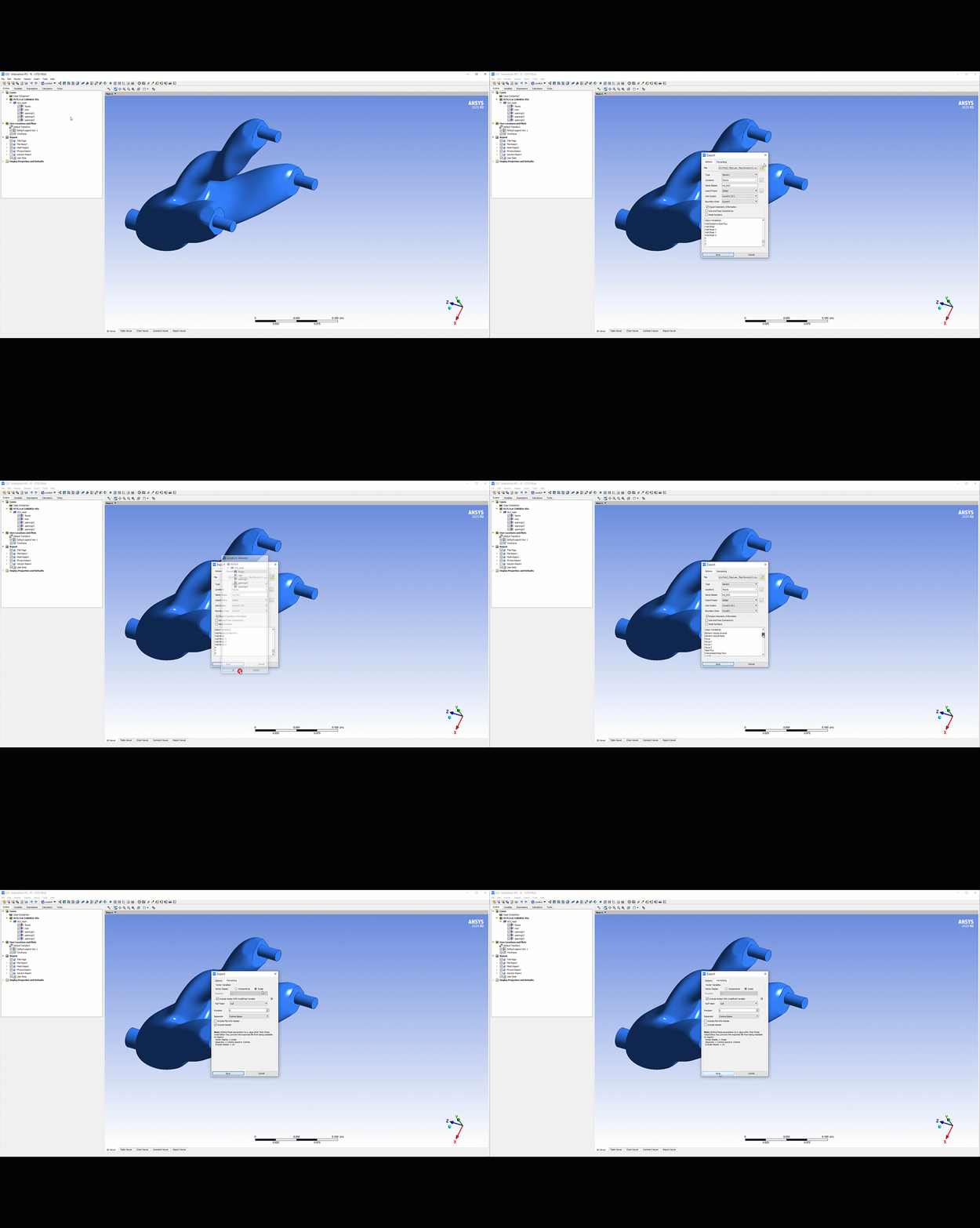
That should do it! If you followed the steps above you should have a CSV ready to import into nTop!
If you still have questions the support team would be happy to help you.