Summary:

This article is intended to showcase nTop’s new notebook capabilities. Notebook descriptions and comments now support Markdown syntax and embedded images.
Applies to:
- Notebook descriptions/comments
- Markdown
- Images
Markdown Capabilities:
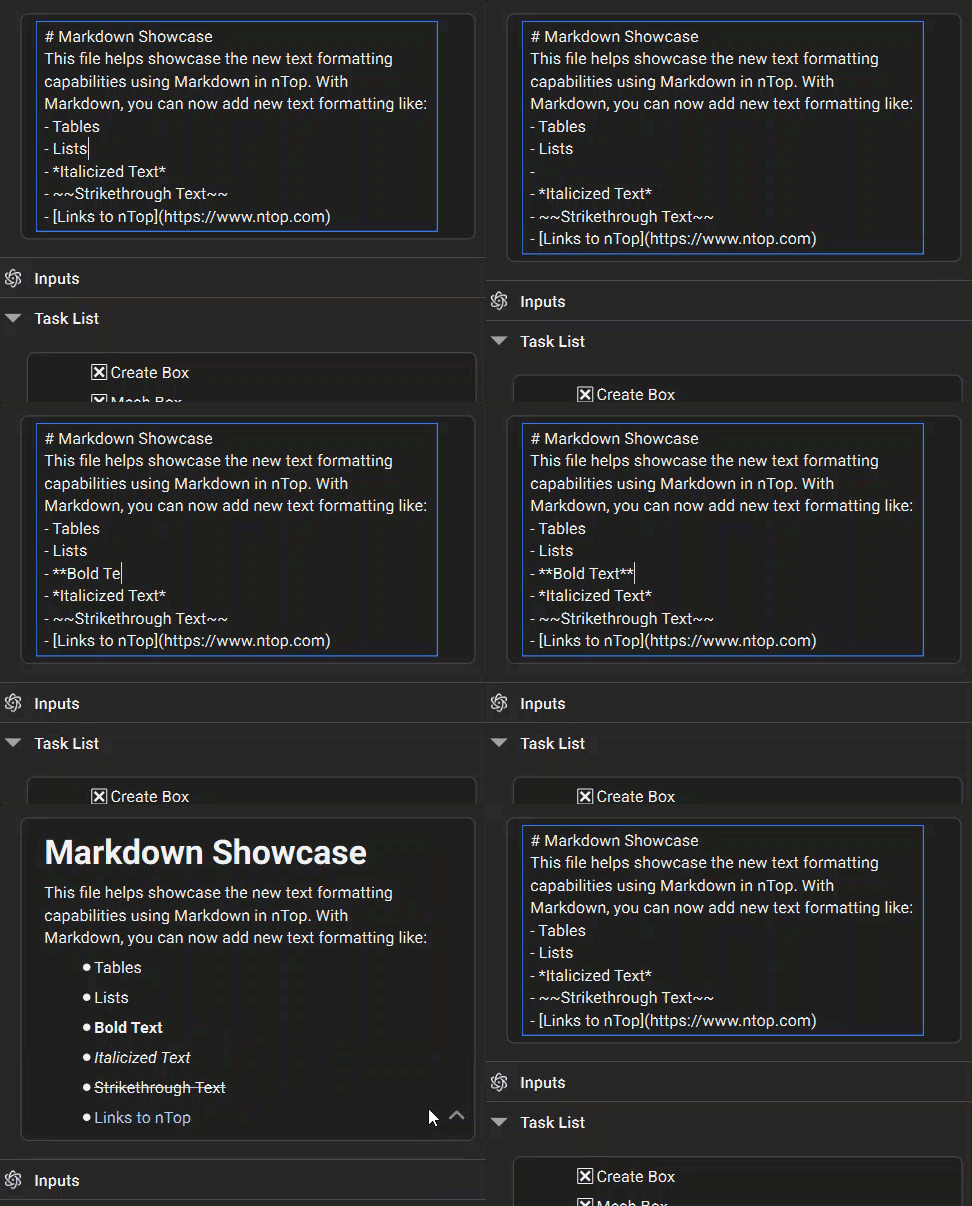
nTop notebook descriptions and comments now accept Markdown syntax for formatting and organizing text. As you enter information into the description/comment, you can use the syntax symbols to modify the text. Once you click outside of the text box, the text will format itself accordingly based on your input syntax. The gif below shows how the text changes from syntax to correct formatting.
Below is a table of some of the most commonly used Markdown operations. Use the example syntax to format your text in notebook descriptions/comments. Shortcuts are available for some of the elements.
| Markdown Element | Syntax | Shortcut |
| Heading |
# H1 ## H2 ### H3 |
|
| Italic | *italicized text* | Ctrl+I |
| Bold | **bold text** | Ctrl+B |
| Strikethrough | ~~strikethrough text~~ | Ctrl+Alt+S |
| Underline | _underlined text_ | Ctrl+U |
| Subscript |
Normal text, ~s~u~b~s~c~r~i~p~t~ <sub>subscript</sub> |
Ctrl+Shift+S |
| Superscript |
mm^2, m^3 <sup>superscript</sup> |
Ctrl+S |
| Code | `code` | |
| Link | [title](https://www.ntop.com) | Ctrl+L |
| Ordered List |
1. First 2. Second 3. Third |
|
| Unordered List |
|
|
| Task List |
- [x] First Task - [ ] Second Task - [ ] Third Task |
|
| Table |
| Item List | Description | | ----------- | ----------- | | Item 1 | Text | | Item 2 | Text | |
|
| Horizontal Line | --- |
Image Capabilities:
Along with Markdown, we’ve added support for images and GIFs within comments and notebook descriptions. Images are stored internally in their original format, including their original size. They are automatically scaled according to the width of the notebook in which they are visible and cannot be manually scaled. The supported formats are .png, .jpg, .jpeg, .bmp, .gif, and .svg.
To insert an image, use one of the following methods:
- Right-click and select Insert Image
- Paste a copied image
- Drag and drop a local file
Note on Pasting: If copying from a web source provides only a URL instead of the image data, the image will not paste directly into the notebook. In this situation, you must first save the image to your local file system and then drag and drop or insert the saved file.