
Objective
This article explains how to export curve and point data from nTop to rebuild wing and duct geometry inside Siemens NX.
Applies to
nTop
Siemens NX
CAD Interop and Geometry Reconstruction Workflows
Supported File Formats
When transferring curve and point data from nTop to Siemens NX, select the file format that best suits your downstream workflow:
- Curves: nTop supports STEP (.stp), Parasolid (.x_t), and IGES (.iges) formats via the Export Part block.
Points: Siemens NX supports point cloud and coordinate imports in ASCII text format via the Export Points custom block.
Procedure
Step 1: Export Curves and Points from nTop
Open your workflow in nTop and locate your wing and duct curve lists.
- Add an Export Part block to export your wing and engine curves. Specify a file path ending in .stp, .x_t, or .iges.
- Add an Export Points block to export point data. Set the destination file path to export in ASCII text format (.txt or .csv).
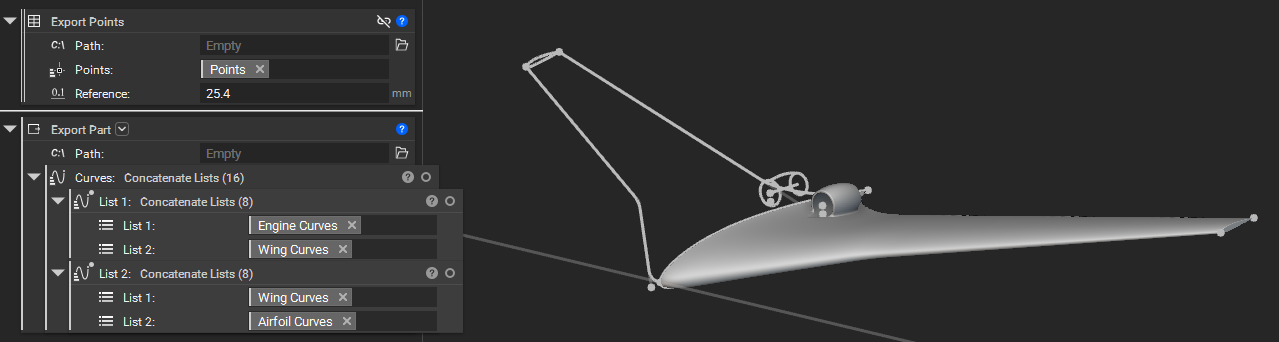
Step 2: Import Files into Siemens NX
Launch Siemens NX and open your working part file.
Navigate to Home > Import > IGES (or select STEP / Parasolid depending on the format exported from nTop).
Select your exported nTop curve file to import the geometry into your NX workspace.
Import your ASCII point file using the NX Point Constructor or Point import tool.
Step 3: Reconstruct the Wing Surfaces
In Siemens NX, open the Swept surface tool.
Select the imported nTop wing curves as your Section and Guides.
-
Generate two separate swept surfaces:
Upper wing surface
Lower wing surface
Step 4: Reconstruct the Duct Geometry
In Siemens NX, select the Revolve surface or feature tool.
Select the imported duct profile curve.
Choose the central axis line and revolve the profile 360° to form the duct body.
Step 5: Mirror the Geometry
Select the Mirror Geometry function in Siemens NX.
Select the reconstructed wing and duct surface bodies.
Choose your central symmetry plane to mirror the geometry and complete the full model.
And that’s it! You’ve successfully exported curves from nTop and reconstructed your geometry in Siemens NX.
Are you still having issues? Contact the support team, and we’ll be happy to help!