
nTop 5.43 is here! This release introduces surrogate modeling via ONNX neural network import, a new overload of the Remap Field block, and the powerful new Track to Block tool for viewport-to-notebook navigation. As with every release, nTop's dedicated support team is ready to answer your questions. Please visit support.ntop.com to gain access to helpful tutorials and support articles.
Import Neural Network
- The Import Neural Network block imports a pre-trained neural network model stored in the ONNX file format for direct evaluation within nTop.
- By loading the model architecture and trained weights, this block creates a surrogate model that can be used for rapid evaluation of complex engineering relationships or integrated directly into optimization workflows.
- Location: Parameter Optimization > Surrogates
- Model: The path to the .onnx file containing the neural network definition.
- Inputs: A group of parameters defining the variables to be passed to the model.
- Reference Unit: The reference used to maintain a consistent output. Typically, this is 1 with the units returned by the model.
- Output Index: (Optional) The index of the desired output from the ONNX model. Defaults to 0.
- Output: Surrogate Model.
Dependent Parameter
- The new overload on the Dependent Parameter block creates a specialized scalar parameter derived from a Surrogate Model (such as a neural network).
- The block evaluates the model using the provided input parameters to generate real-time predictions. Because it is a "Dependent Parameter," its value updates automatically whenever its inputs change.
- Location: Parameter Optimization > Composition
- Surrogate: Surrogate model to evaluate.
- Label: (Optional) Unique identifier for the output parameter.
- Output: Parameter
Track to Block
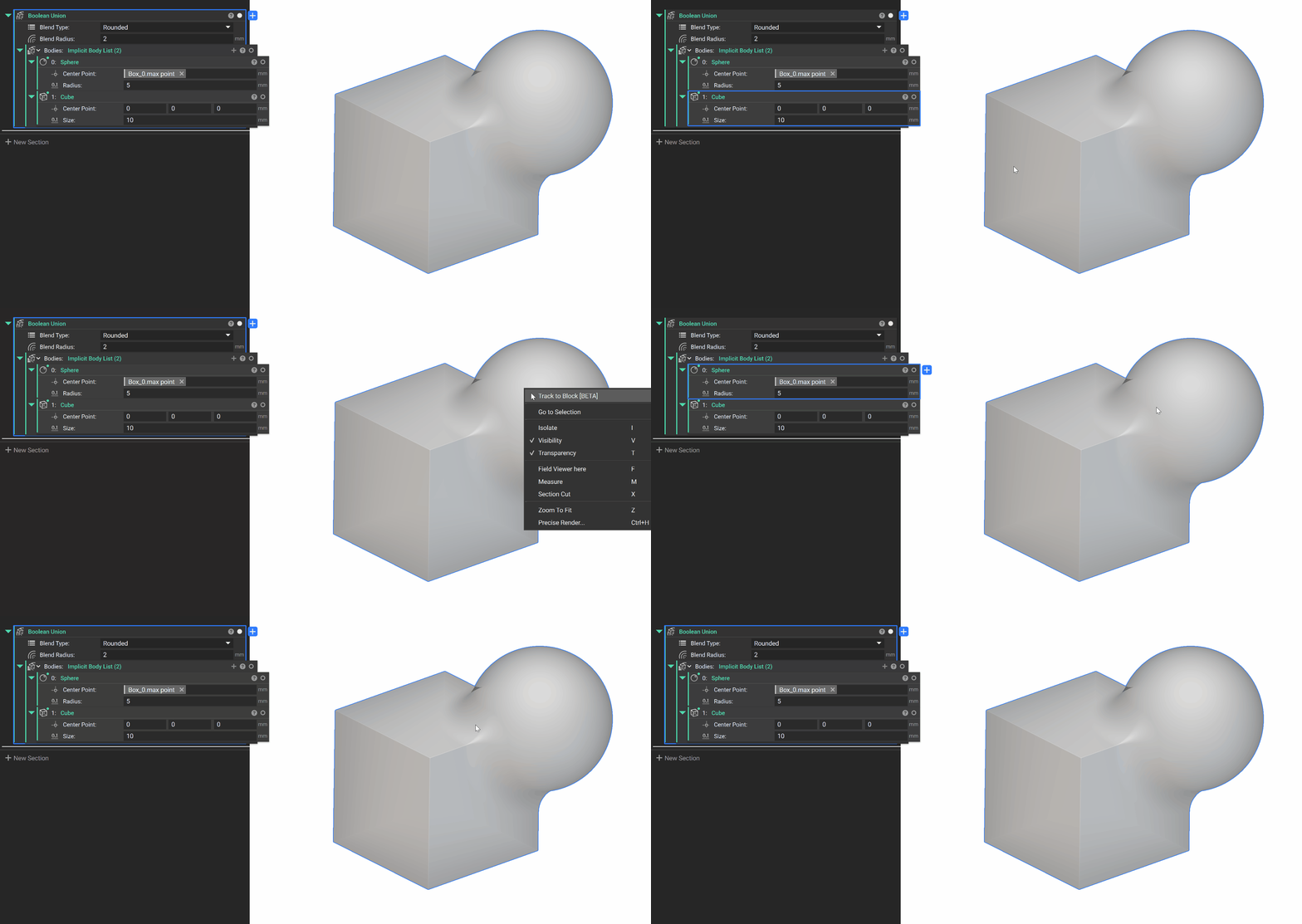
- The Track to Block right-click function streamlines the design process by connecting the viewport directly to your notebook. By clicking a specific region of an implicit body, nTop traces the implicit tree to identify and focus on the exact block that generated that point in space. This is especially useful for identifying which blocks drive specific surface features and debugging complex booleans.
- How to use it:
- Right-click on any point on an implicit body in the viewport.
- Select Track to Block from the context menu.
- nTop will automatically highlight the originating block in your notebook.
Remap Field

- The new default overload of the Remap Field block uses a Vector Field to designate the target coordinate space of the remap operation.
- By making this a vector field input, it is easier for users to reuse a given remap operation. This working pattern improves readability, sharpens the mental model of remap operations, and reduces the likelihood of copy-paste errors on individual inputs.
- Location: Fields > Remap
- Scalar Field: Field to remap values of.
- Coordinate Space: Field to evaluate to obtain XYZ components of the new evaluation location.
Usage Improvements
- The Measurement Tool now shows the coordinates of each selected point when measuring.
- The Go to Selection right-click function focuses on the selected block in the notebook and expands the relevant section.