
nTop 5.46 is here! This release features three new blocks for curve generation. As with every release, nTop's dedicated support team is ready to answer your questions. Please visit support.ntop.com to gain access to helpful tutorials and support articles.
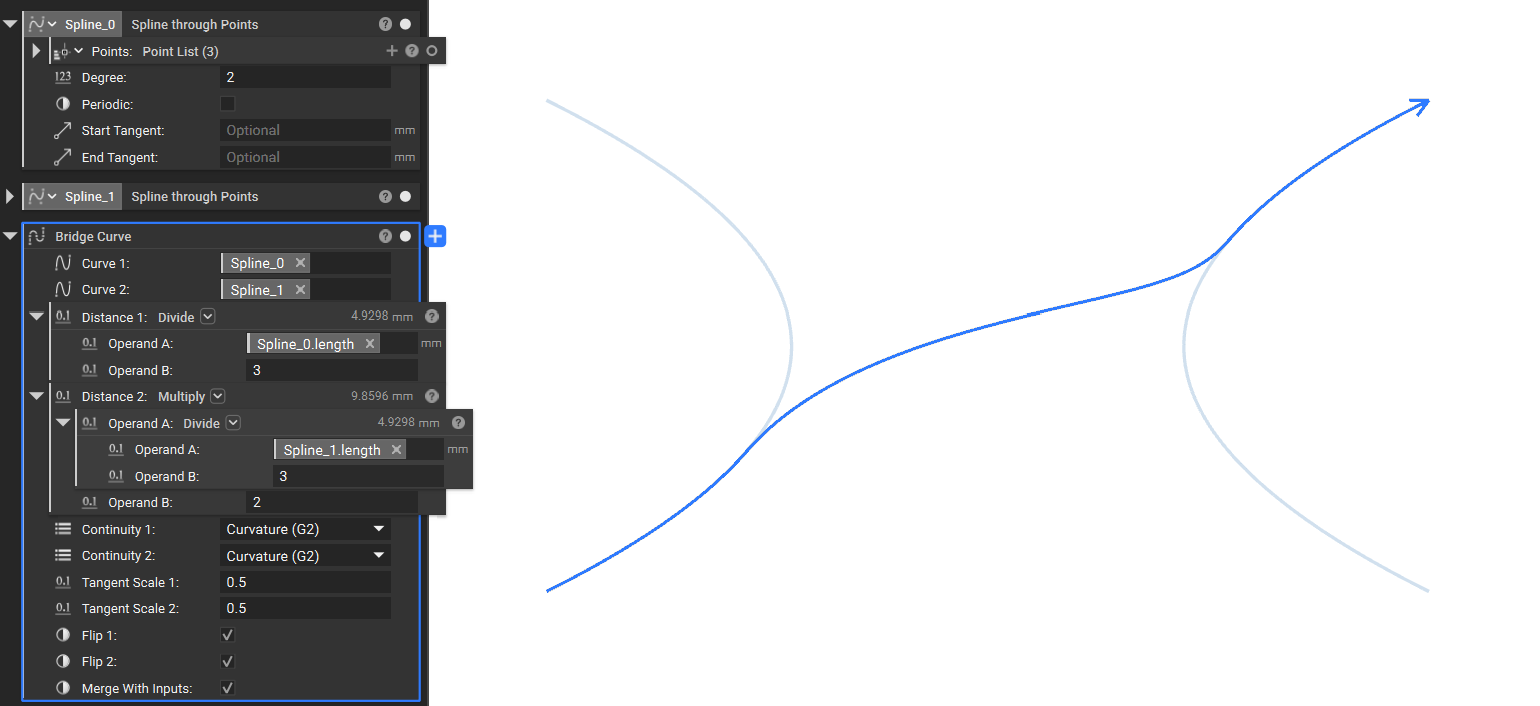
Bridge Curve
- The Bridge Curve block creates a smooth spline connection between two curves with controllable continuity (G0, G1, or G2). It allows you to precisely define junction points along each input curve using arc-length distances and provides an option to trim and merge the results into a single unified Polycurve.
-
Common uses:
- Generating continuous, high-order curvature profiles for wings or ducting inlets.
- Location: Create > Curves
- Curve 1: First curve.
- Curve 2: Second curve.
- Distance 1: Arc length from the start point along Curve 1 to the junction.
- Distance 2: Arc length from the start point along Curve 2 to the junction.
- Continuity 1: Smoothness of the resulting curve at the Curve 1 junction. The higher the order, the smoother the transition.
- Continuity 2: Smoothness of the resulting curve at the Curve 2 junction. The higher the order, the smoother the transition.
- Tangent Scale 1: Scale factor applied to the tangent vector of the bridge curve at the Curve 1 junction.
- Tangent Scale 2: Scale factor applied to the tangent vector of the bridge curve at the Curve 2 junction.
- Flip 1: If checked, Distance 1 will be calculated from the end point of Curve 1 and the tangent direction of the bridge curve at this point will be reversed.
- Flip 2: If checked, Distance 2 will be calculated from the end point of Curve 2 and the tangent direction of the bridge curve at this point will be reversed.
- Merge With Inputs: If checked, trim the inputs and join the three resulting curves into a Polycurve.
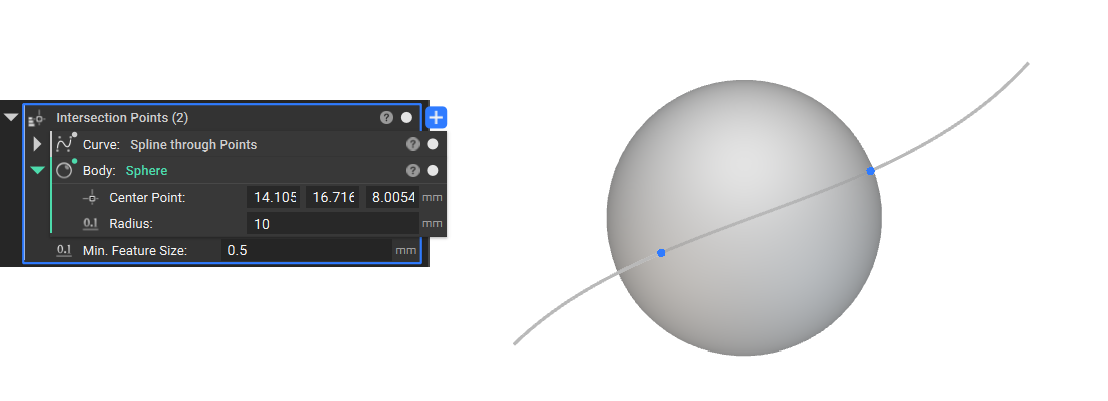
Intersection Points
- The Intersection Points block returns a list of all points where a specific Curve crosses the boundary of an Implicit Body.
-
Common uses:
- Placing features and components precisely at intersections, creating construction geometry
- Location: Create > Curves
- Curve: Curve to intersect with the body.
- Body: Body to intersect with the curve.
- Min. Feature Size: Optional value to specify the approximate size of the smallest feature(s) on the implicit body to be detected along the curve. If not specified, a value is chosen based on the input curve.
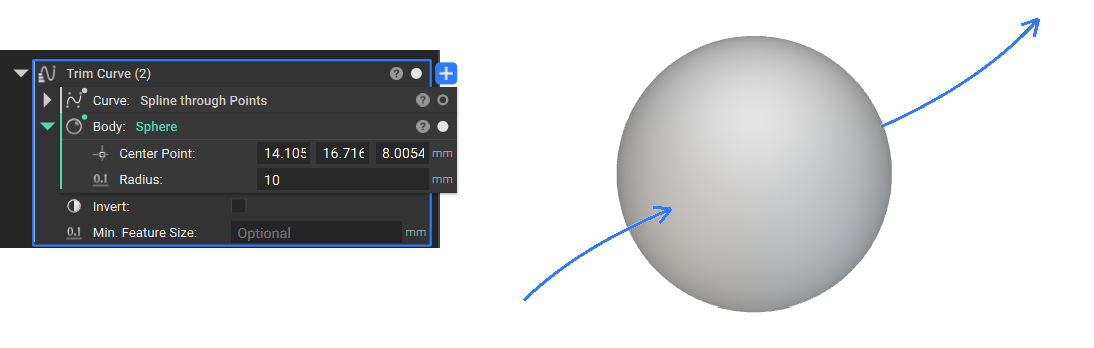
Trim Curve
- The Trim Curve block segments a curve based on its intersections with an Implicit Body. It splits the curve into one or more segments, allowing you to isolate only the portions of the path relevant to your design.
-
Common uses:
- Creating construction geometry, controlling the termination of sweep rails.
- Location: Create > Curves
- Curve: Curve to trim.
- Body: Body to trim the curve with.
- Invert: When true, returns portions of the curve inside the body instead of outside.
- Min. Feature Size: Optional value to specify the approximate size of the smallest feature(s) on the implicit body to be detected along the curve. If not specified, a value is chosen based on the input curve.
Usage Improvements
- We have added a reversed property to all curve types to allow for better control over curve direction.
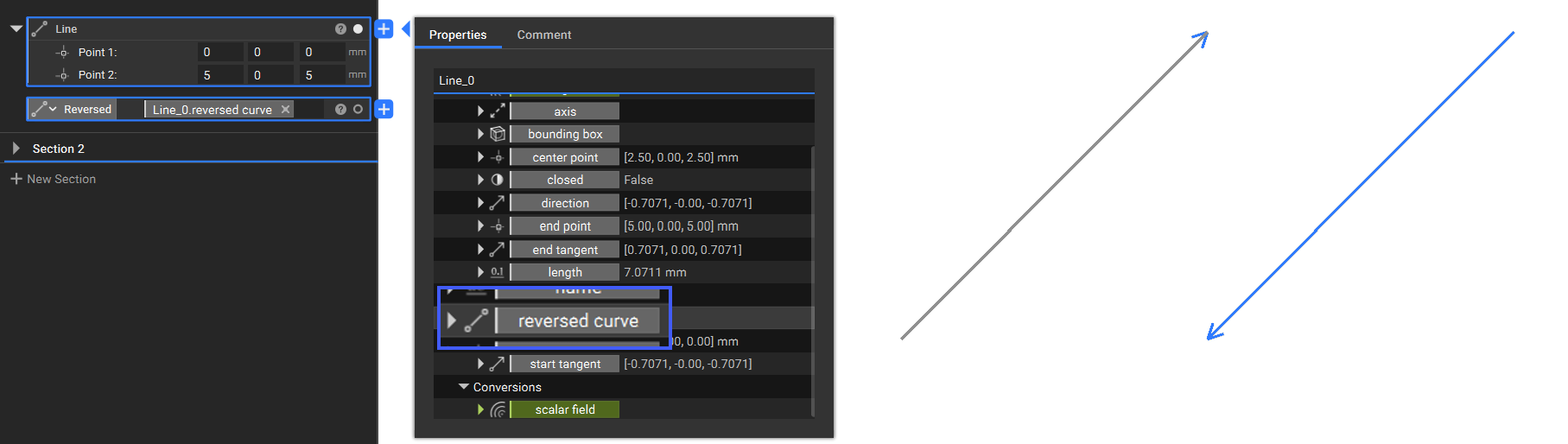
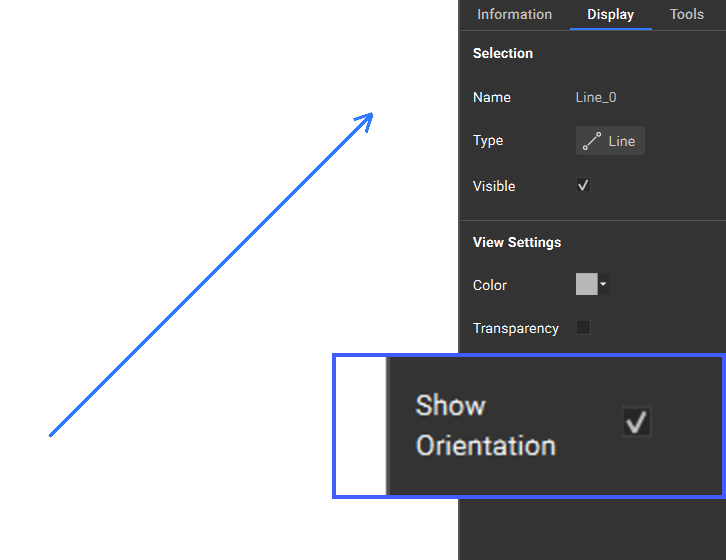
- We have added a "Show Orientation" attribute to curve types to visualize curve directionality when selected. This attribute can be toggled off in the right side panel.
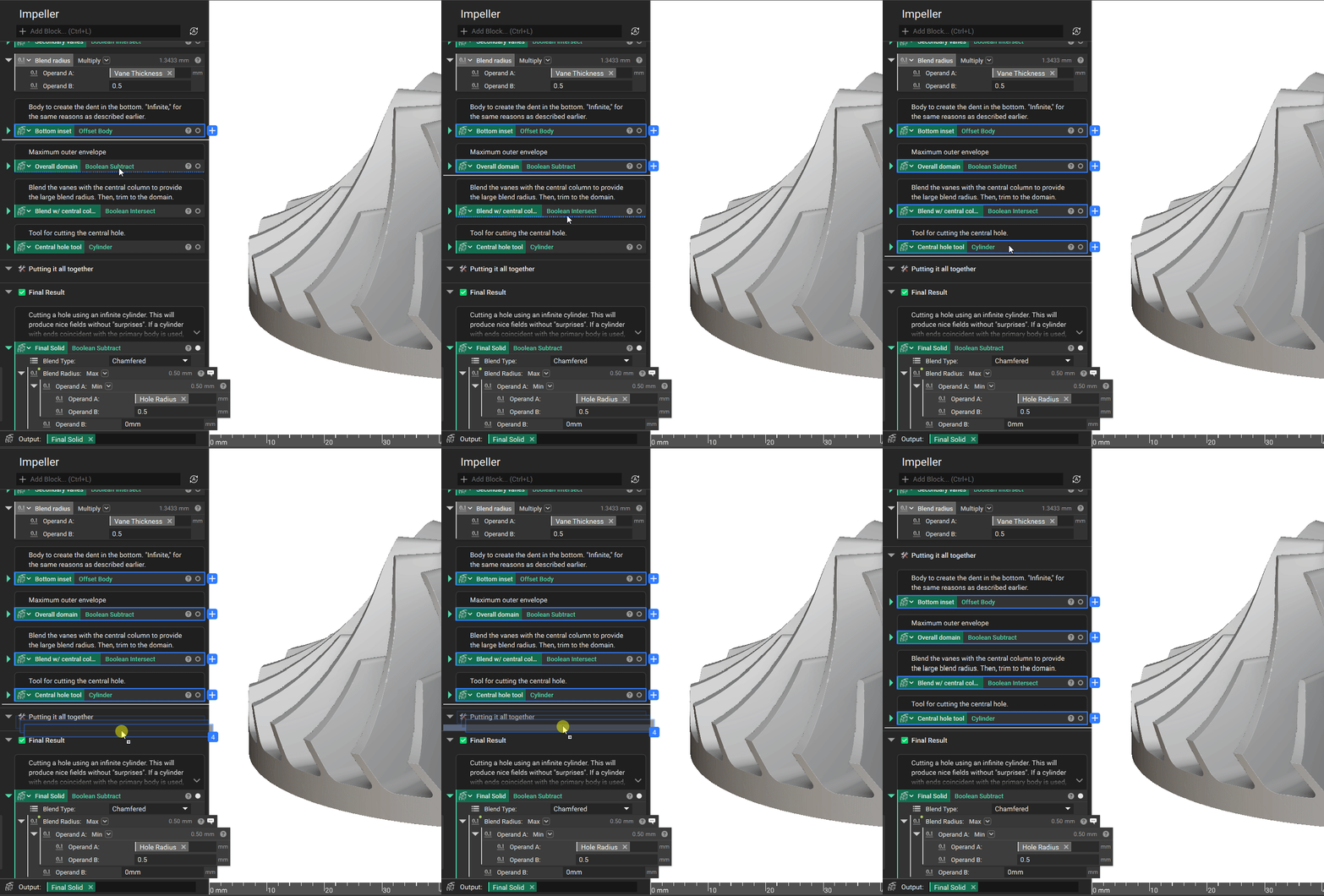
- You can now reorder blocks within the notebook via drag-and-drop and perform multi-selection interactions, such as Shift+Click for range selection. To support this change, block inputs can not be selected at the same time as parent blocks.
Block Updates
- We have updated our nTop Fluids solver, which now independently calculates Bernoulli energy balances and flow parameters for physically separate fluid domains, ensuring mass conservation and correct convergence in CHT or porous-region setups.