nTop 5.26 is here! This release features our new primitive blocks for Rounded Box, Rounded Cylinder, and Capsule. We are also releasing our new curvature display mode, which makes it easier for you to visualize the surface curvature of your geometry. As with every release, nTop's dedicated support team is ready to answer your questions. Please visit support.ntop.com to gain access to helpful tutorials and support articles.
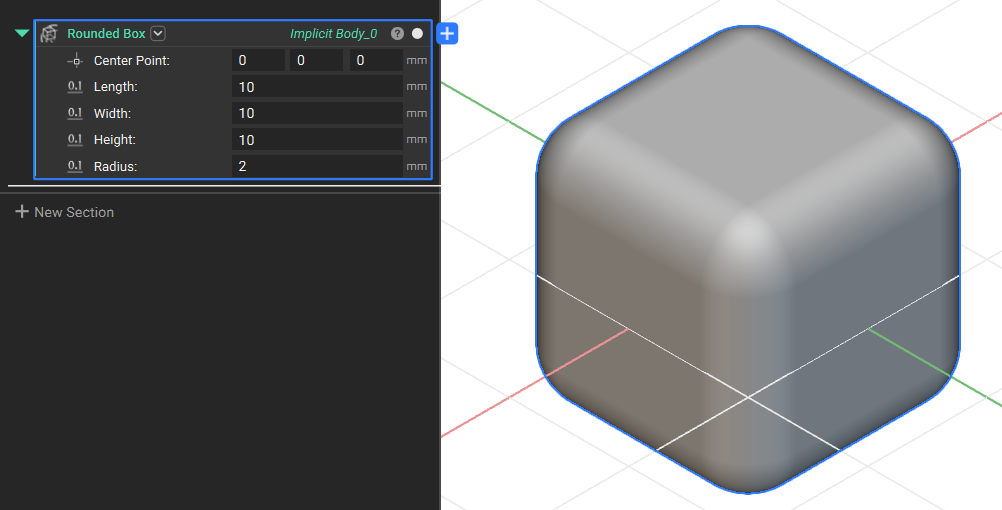
Rounded Box
- The Rounded Box block creates a box with rounded corners from a center point, three length inputs, and an edge radius.
- Use this block to quickly create base design space, enclosures, or other box-like shapes that require smooth, filleted edges.
- Location: Create > Primitives
- Center Point: Center Point of the box.
- Length: Length of the box along the X-axis.
- Width: Length of the box along the Y-axis.
- Height: Length of the box along the Z-axis.
- Radius: Radius applied to the edges of the box.
-
Output: Implicit Body
Rounded Cylinder
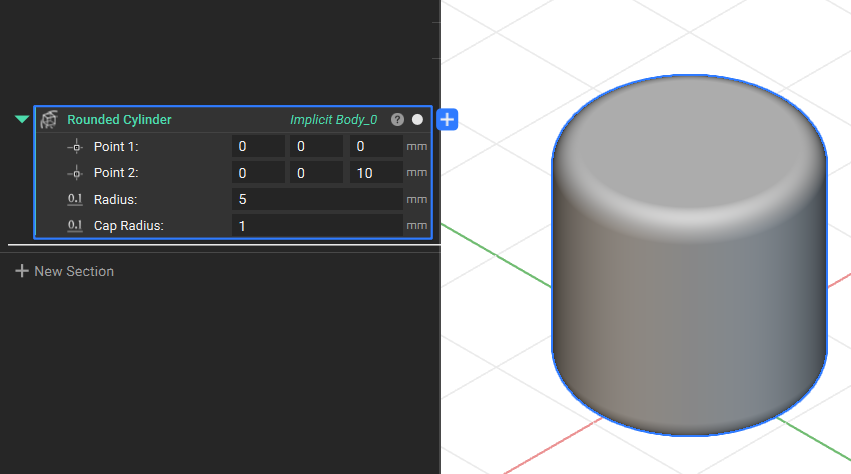
- The Rounded Cylinder block creates a cylinder from two point inputs and their corresponding radii.
- Use this block to quickly model objects like pipes, pins, or shafts with smooth, filleted edges in a single step.
- Location: Create > Primitives
- Point 1: Point 1 of the cylinder.
- Point 2: Point 2 of the cylinder.
- Radius: Radius of the cylinder.
- Cap Radius: Radius applied to the top and bottom faces of the cylinder.
-
Output: Implicit Body
Capsule
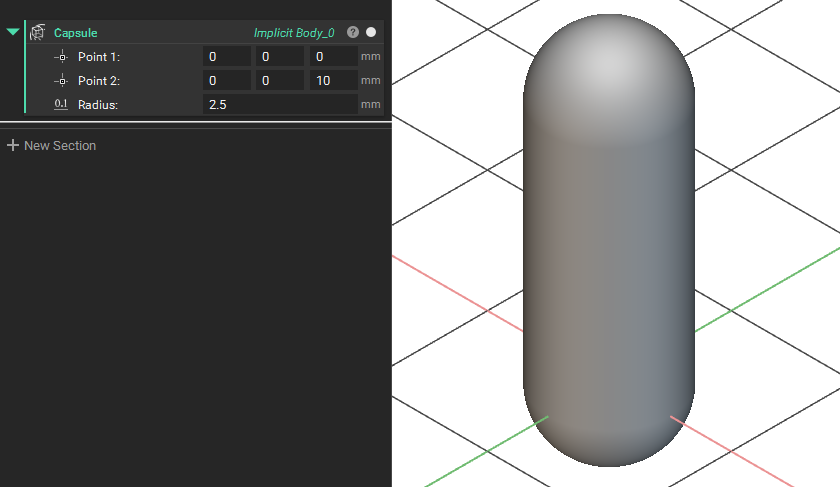
- The Capsule block creates a capsule from two point inputs and the radius.
- Use this block to quickly model objects like housings, pins, or shafts with smooth, rounded ends in a single step.
- Location: Create > Primitives
- Point 1: Point 1 of the capsule.
- Point 2: Point 2 of the capsule.
- Radius: Radius of the capsule.
-
Output: Implicit Body
Curvature Analysis
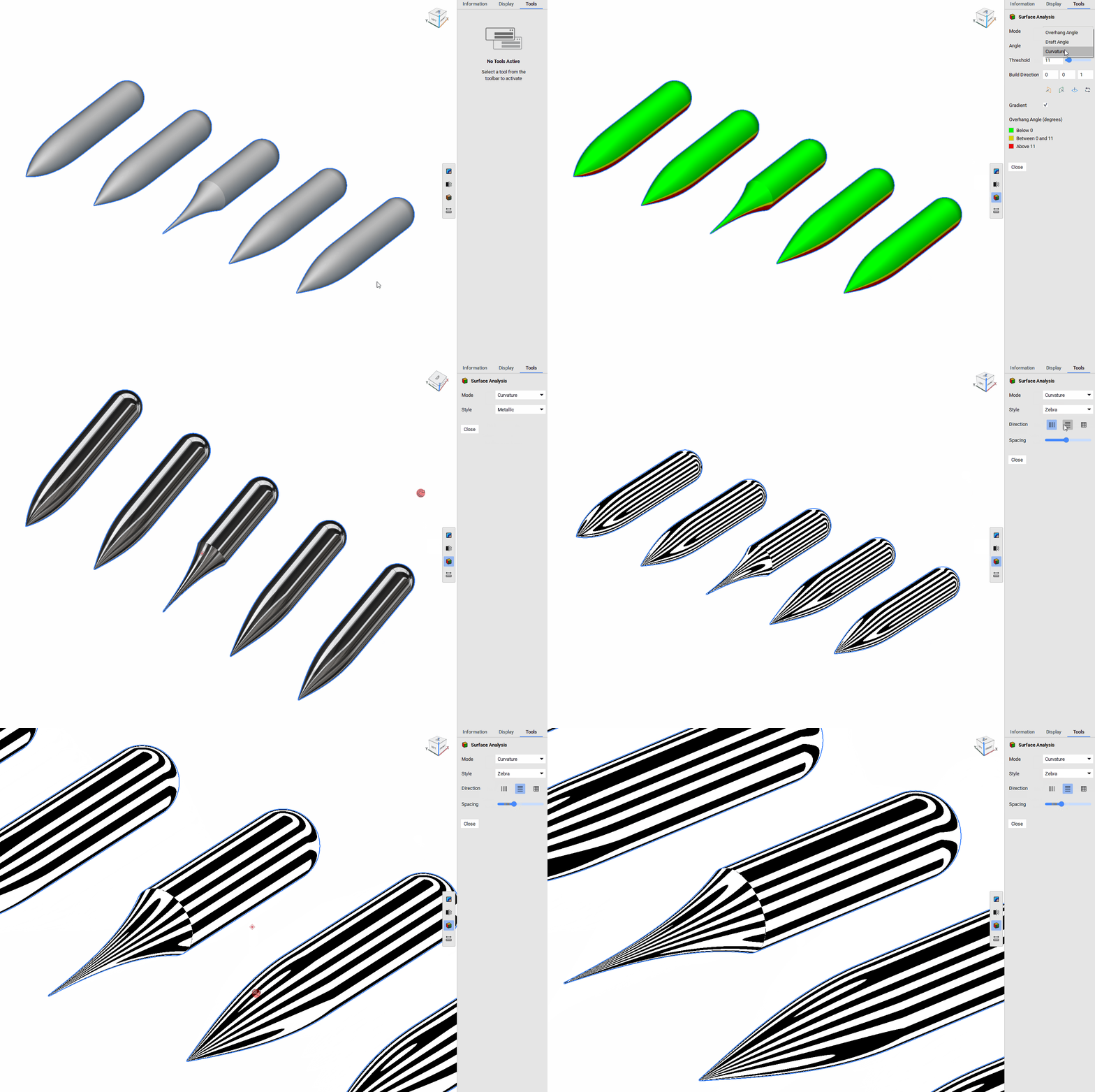
- Curvature display mode has been added to the Surface Analysis View Tool, allowing you to visualize the surface curvature of your geometry.
- Two styles are available:
- Metallic: Renders the geometry with a shiny, reflective surface, which improves the clarity of curvature and surface quality.
- Zebra: Displays a series of alternating black and white stripes on a surface. The reflection patterns of these stripes indicate the surface's curvature. You can select from three buttons to choose the orientation of the stripes and use a slider to adjust their spacing.
-
Location: View Tools > Surface Analysis > Curvature