
nTop 5.32 is here! This release features our new Aircraft Flow Analysis block, which enables CFD simulation for aerodynamic evaluation. We also updated the Markdown support to include images and GIFs for richer documentation. As with every release, nTop's dedicated support team is ready to answer your questions. Please visit support.ntop.com to gain access to helpful tutorials and support articles.
Aircraft Flow Analysis
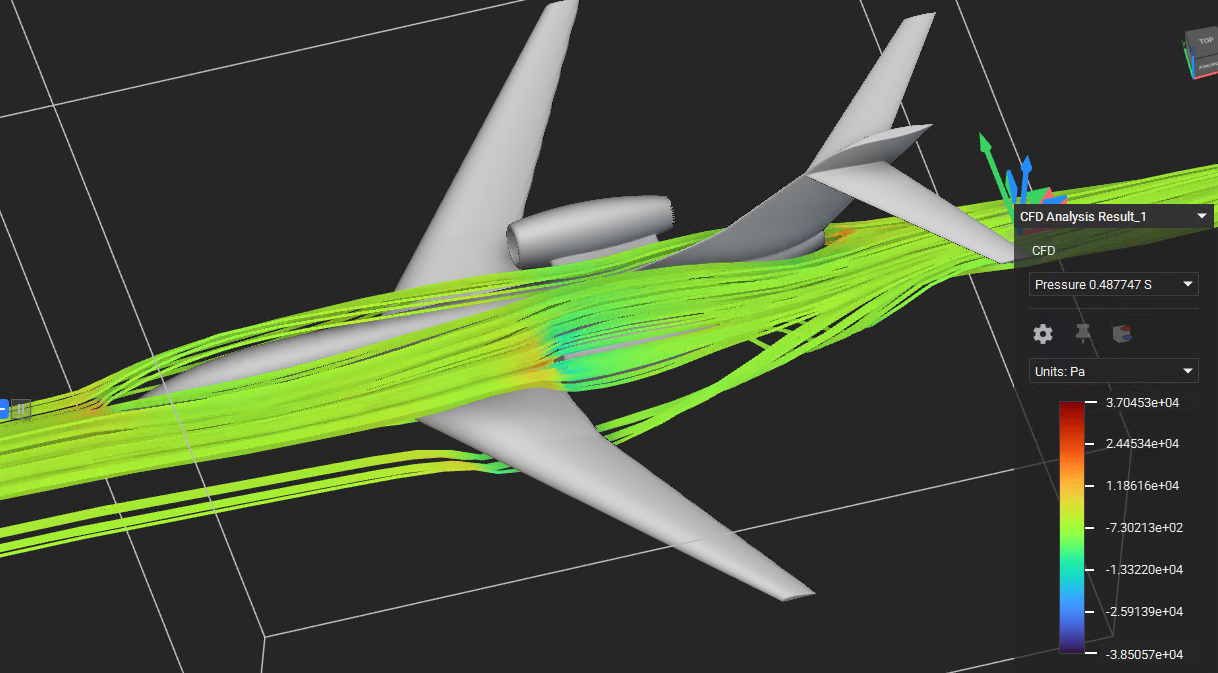
- The Aircraft Flow Analysis block calculates the aerodynamic performance of an Implicit Body using a Lattice Boltzmann Method (LBM) simulation. It performs a transient simulation that runs until the flow reaches a statistically steady state, returning time-averaged pressure and velocity fields, as well as surface forces.
- Common uses:
- Calculating lift, drag, and moments on aircraft wings, fuselage sections, or complete assemblies.
- Generating pressure and velocity fields to visualize flow behaviours.
- Quickly assessing the impact of geometric changes (e.g., wing modifications, control surface adjustments) on overall aerodynamic performance.
- Location: Fluids > Analysis
- Aircraft Body: The implicit body used for aerodynamic evaluation.
- Mach Number: The Mach number of the freestream.
- Temperature: Defines the temperature of the freestream.
- Pressure: Defines the pressure of the freestream.
- Angle of Attack: The angle between the body reference line and the airflow direction.
- Cell Size: The size of the cells used in the analysis.
- Output: CFD Analysis Result
-
Note: This block requires an NVIDIA GPU for computation
- Note: This capability is currently applicable only to subsonic flows (speeds up to Mach 0.7)
Filter Cell Region
- The Filter Cell Region block creates a list of points representing the center of elements for an imported CFD Analysis Result. This Point list is explicitly filtered by the Region identifier you provide, allowing you to isolate and analyze data from a particular volume of the computational domain.
- Common uses:
- Isolating a specific region of the fluid domain (e.g., the wake region behind a body) for detailed post-processing and analysis.
- Location: Fluids > Utilities
- CFD Analysis Result: Cell region point list for the result
- Region: Only include points with this region ID
- Output: Point List
Markdown Support Update
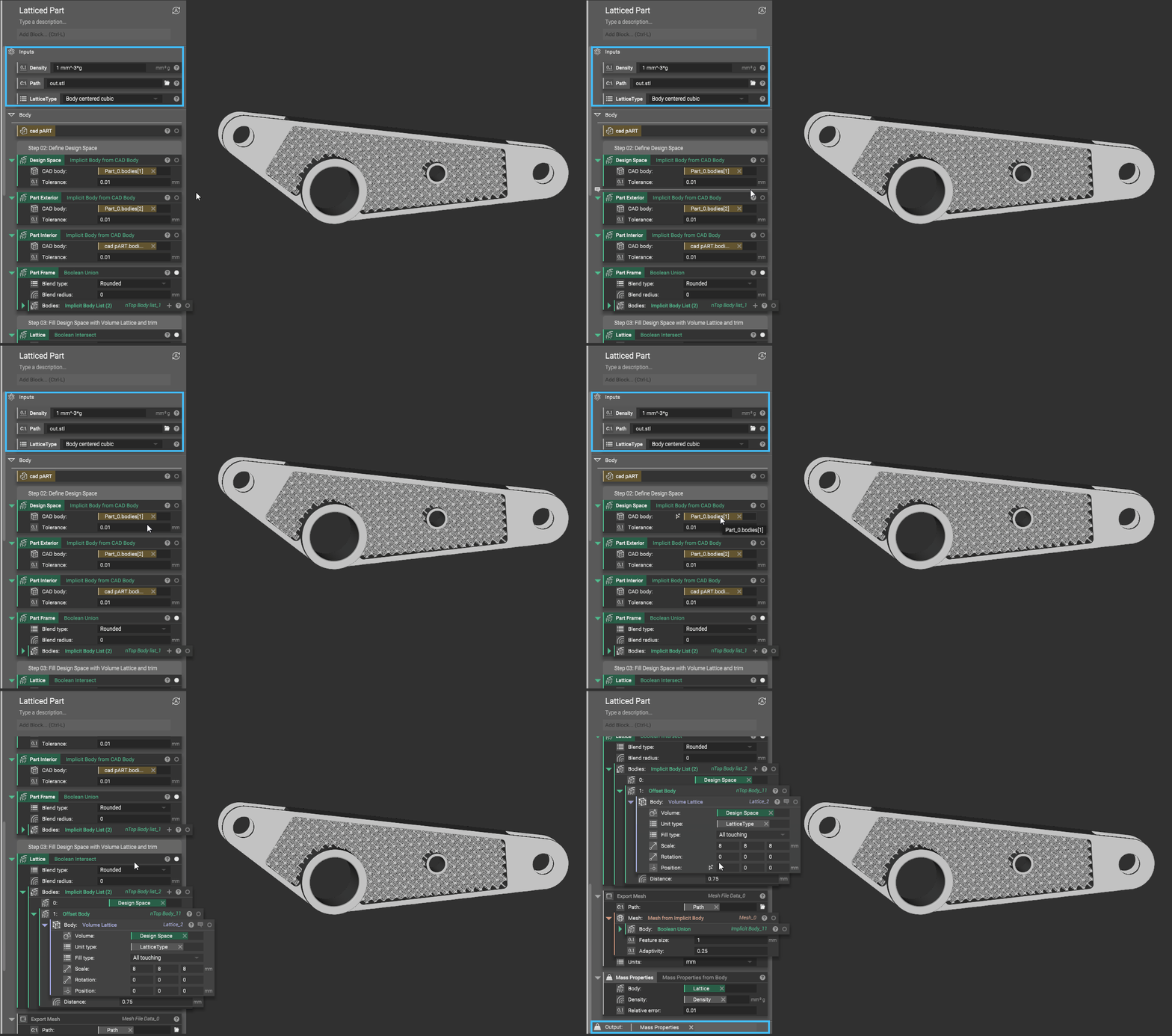
- We've added support for images and GIFs within comments and notebook descriptions.
- This functionality can be used for notebook self-documentation, richer block descriptions, tables, embedded hyperlinks, and more.
- To insert an image, use one of the following methods: right-click and select Insert Image, paste a copied image, or drag and drop a local file.
- Note on Pasting: If copying from a web source provides only a URL instead of the image data, the image will not paste directly into the notebook. In this situation, you must first save the image to your local file system and then drag and drop or insert the saved file.
- Supported Formats are .png, .jpg, .jpeg, .bmp, .gif, and .svg.
- Images are stored internally in their original format, including their original size. They are automatically scaled according to the width of the notebook in which they are visible and cannot be manually scaled.
Block Update
- We have enabled the Embed functionality in the Import Superelement block.