
nTop 5.34 is here! This release introduces Parameter Optimization (inverse design), a robust new optimization located in its own ribbon. This release also includes usability upgrades, such as the ability to view plot data directly from tables and new floating comments for better notebook organization. As with every release, nTop's dedicated support team is ready to answer your questions. Please visit support.ntop.com to gain access to helpful tutorials and support articles.
Parameter Optimization Ribbon
Parameter Optimization
Parameter Objective
Parameter Constraint
Constant Parameter
Independent Parameter
Dependent Parameter
Design Parameters from Optimization
Evaluate Parameter
Tracked Parameters from Optimization
Usage Improvements
Block Update
Parameter Optimization Ribbon
- Parameter optimization, also known as inverse design, determines the set of parameters that yield an optimal outcome for a specified objective function, subject to defined constraints.
- This new feature is available in its own Parameter Optimization ribbon, which gathers all the necessary blocks to set up and run an optimization study.

Parameter Optimization
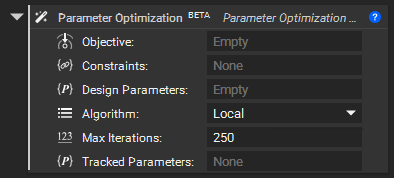
- The Parameter Optimization block runs an optimization algorithm to find the optimal collection of Design Parameters satisfying the Objective while satisfying all Constraints.
- Note: We recommend not making Parameter Optimization a variable to avoid a known issue of handling parameter group inputs while contained in a variable
- Location: Parameter Optimization > Optimization
- Inputs:
- Objective: The objective function for the optimization process.
- Constraint Type: The constraints to satisfy during the optimization process.
- Design Parameters: The collection of Parameters the algorithm will change in its search for the optimal solution.
- Algorithm: The specific optimization method to be used. This dictates how the block will search for the optimal solution.
- Max Iterations: The maximum number of iterations allowed during the optimization process.
- Tracked Parameters: Additional Parameter to be tracked and logged during the optimization process. This is useful for debugging and detailed analysis.
- Output: Parameter Optimization Result
Parameter Objective
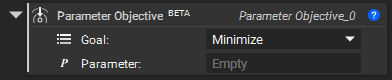
- The Parameter Objective block specifies a goal for Parameter Optimization. The objective guides the optimizer on the desired outcome.
- Location: Parameter Optimization > Composition
- Inputs:
- Goal: Optimization goal (Minimize or Maximize).
- Parameter: Parameter used to define the optimization objective.
- Output: Parameter Objective
Parameter Constraint
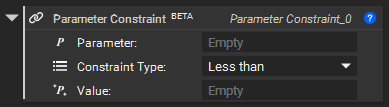
- The Parameter Constraint block defines a condition that a Parameter must satisfy. Parameter Constraints can be used to enforce limits on the Parameter to determine a valid solution space.
- Location: Parameter Optimization > Composition
- Inputs:
- Parameter: Parameter to be constrained.
- Constraint Type: Constraint operator (Less Than or Greater Than).
- Value: Minimum or Maximum value for constraint.
- Output: Parameter Constraint
- Note: Use the Parameter Constraint Group block to combine more than one constraint.
Constant Parameter
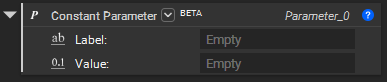
- The Constant Parameter block creates a parameter with a fixed value. It is used to define a constant design variable that does not change during optimization, serving as a placeholder for a specific, unchanging value in an optimization problem.
- Location: Parameter Optimization > Composition
- Inputs:
- Label: Unique identifier of the parameter.
- Value: Default value of the parameter.
- Output: Parameter
- Note: Use the Parameter Group block to combine more than one parameter.
Independent Parameter
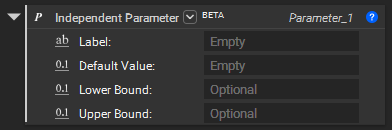
- The Independent Parameter block creates an independent optimization parameter that can vary within optional bounds during optimization.
- Location: Parameter Optimization > Composition
- Inputs:
- Label: Unique identifier of the parameter.
- Default Value: Default value of the parameter.
- Lower Bound: Minimum allowed value of the parameter.
- Upper Bound: Maximum allowed value of the parameter.
- Output: Parameter
- Note: Use the Parameter Group block to combine more than one parameter.
Dependent Parameter
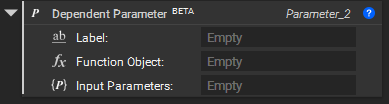
- The Dependent Parameter block creates a Dependent Parameter whose value is computed from other Parameters using a specified Function.
- Location: Parameter Optimization > Composition
- Inputs:
- Label: Unique identifier of the parameter.
- Function Object: The Function Object evaluated to produce the output Parameter's value.
- Input Parameters: Parameters defining Function Object inputs. The group elements correspond to the Function Object inputs by Index.
- Output: Parameter
- Note: Use the Parameter Group block to combine more than one parameter.
Design Parameters from Optimization
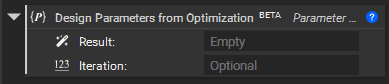
- The Design Parameters from Optimization block extracts all design parameters at a specific iteration from a Parameter Optimization result.
- Location: Parameter Optimization > Utilities
- Inputs:
- Result: Result to extract the design parameters from.
- Iteration: The Iteration number from which the Parameter Group will be extracted. If not provided, the last iteration will be used.
- Output: Parameter Group
Evaluate Parameter
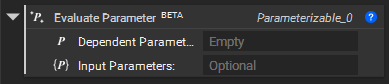
- The Evaluate Parameter block computes the value of a Dependent Parameter for a specified collection of input parameters with constant or known values.
- Location: Parameter Optimization > Utilities
- Inputs:
- Dependent Parameter: Dependent Parameter to be evaluated.
- Input Parameters: Inputs used to evaluate the Dependent Parameter. If no inputs are provided, default values assigned during composition will be used.
- Output: Parameterizable
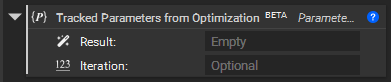
Tracked Parameters from Optimization
- The Tracked Parameters from Optimization block extracts all Tracked parameters at a specific iteration from a Parameter Optimization result.
- Location: Parameter Optimization > Utilities
- Inputs:
- Result: Result to extract the tracked parameters from.
- Iteration: The Iteration number from which the Parameter Group will be extracted. If not provided, the last iteration will be used.
- Output: Parameter Group
Usage Improvements
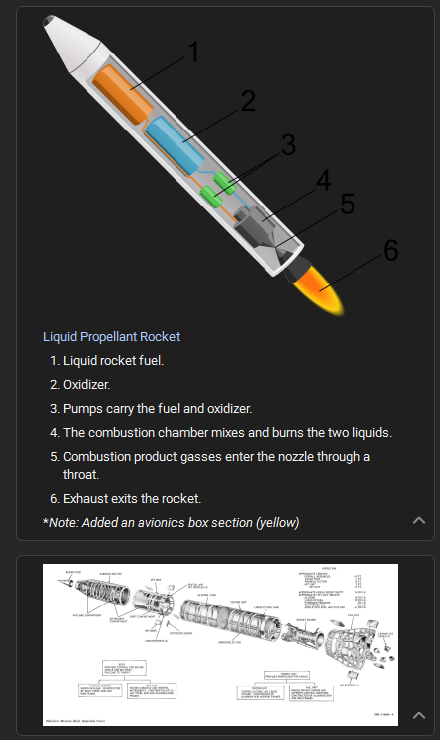
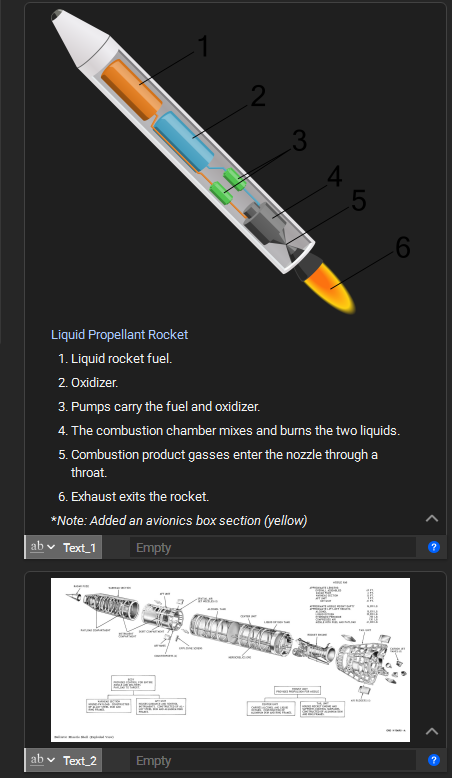
- You can now add a Comment that is not associated with a block by right-clicking in the notebook and selecting "Add Comment". You can also right-click an existing comment and select "Detach Comment" to remove its association from a block.
| Before 5.34 | After 5.34 |
|---|---|
|
Previously, a placeholder variable was required to add comments in the notebook. |
 |
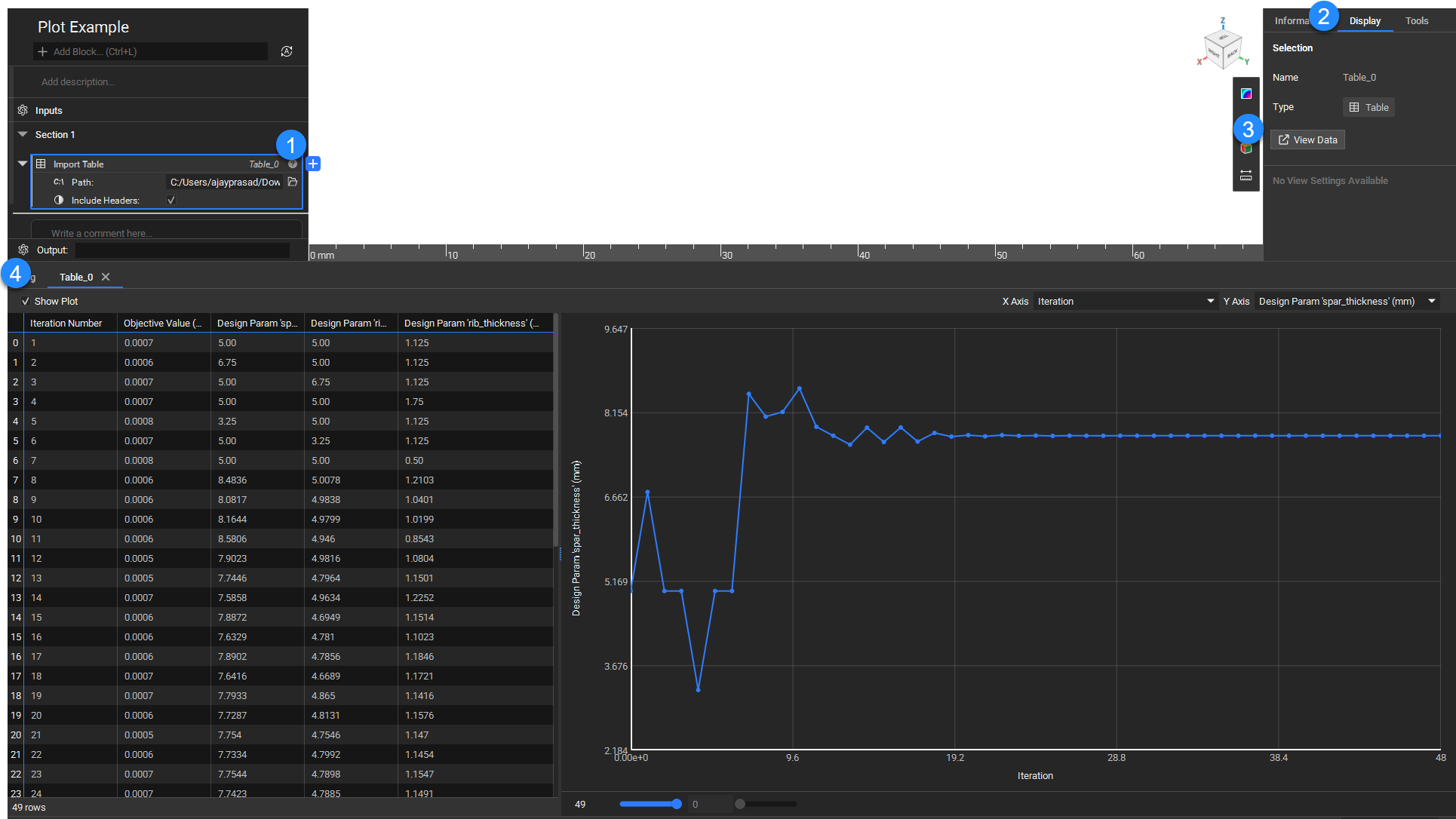
- You can now visualize Table data as a 2D plot. To access this feature, click the View Data button in the Display tab of the Right Panel and select the Show Plot button. Use the dropdown menus for the X-axis and Y-axis, which correspond to the table headers, to choose your data.
Block Update
- We have updated the Extract Optimization History block to support Parameter Optimization as well.