
Objective:
Debossing an image
Applies to:
- Import Bitmap
- Map Bitmap to Plane
Procedure:
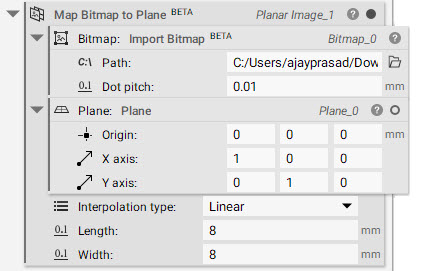
1. Get started with importing your image (png) file using the Import Bitmap block (this block is a beta block)
- Add a Map Bitmap to Plane block
- Insert the Import Bitmap block in the Bitmap field
- Create a Plane
- Choose your Interpolation type, Length, and Width
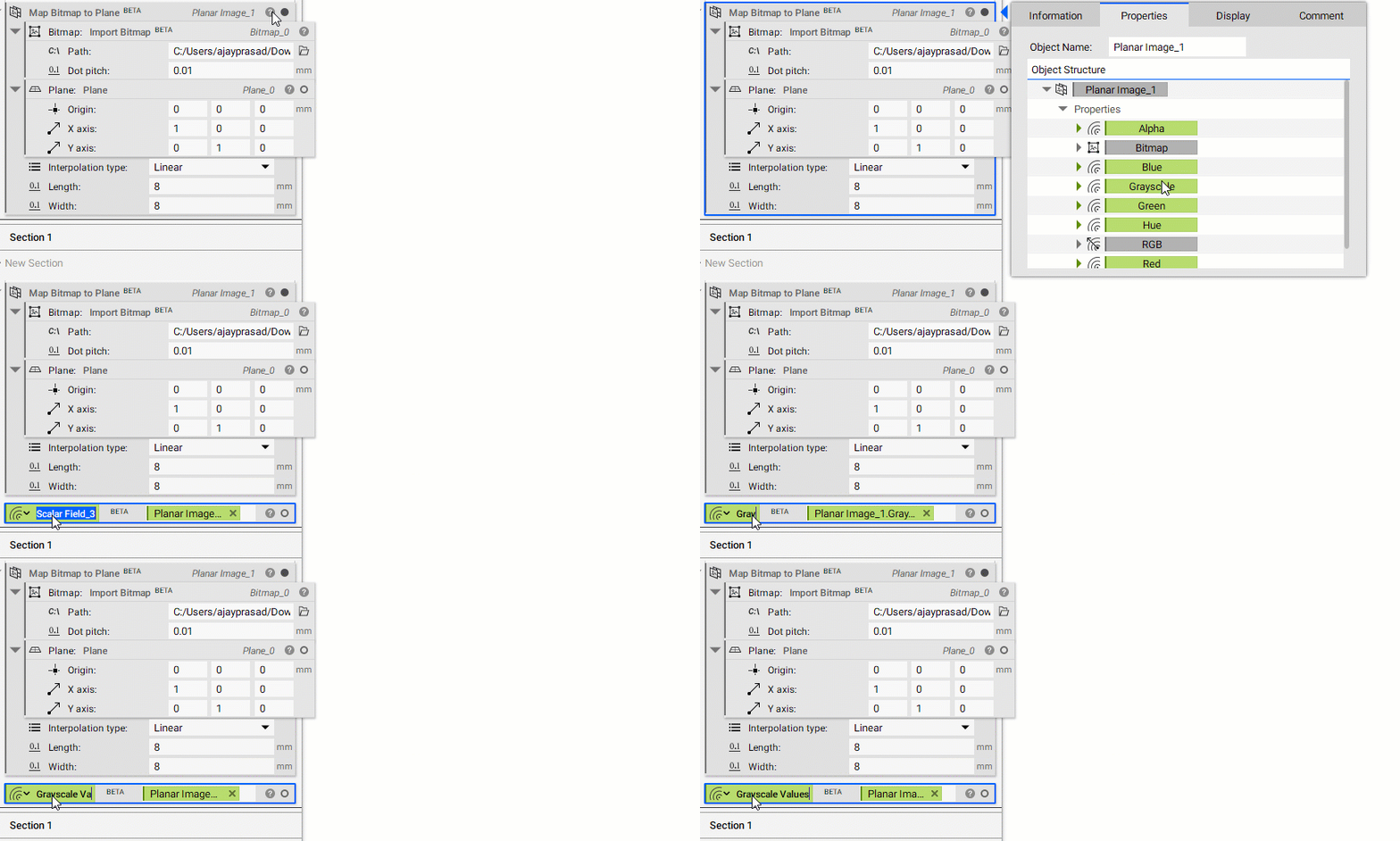
2. Drag a Scalar Field (Alpha, Blue, Grayscale, Green, Hue, and Red) chip from the Planar Image_1's properties panel into the Notebook. The chosen field is what will be debossed in further steps.
3. Create the geometry for the image to be debossed into
- Add Box of Length 10mm, Width 10mm, and Height 2mm
4. Deboss the image
- Add Offset Body
- Insert Ramp in the Distance field
- Scalar field: Grayscale Values
- In min: 0
- In max: 1
- Out min: 0mm
- Out max: 0.2mm
- Continuity: Geometric (CO)
5. Boolean operation to remove the excess material and combine it with our initial geometry
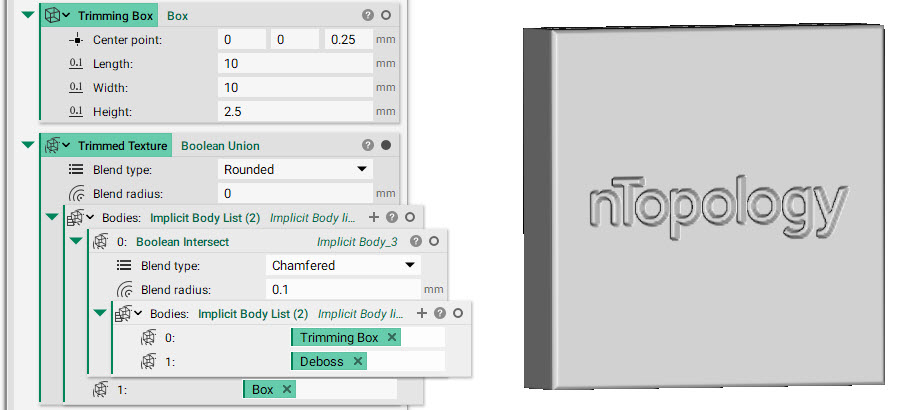
And that’s it! You’ve successfully debossed your image
Are you still having issues? Contact the support team, and we’ll be happy to help!